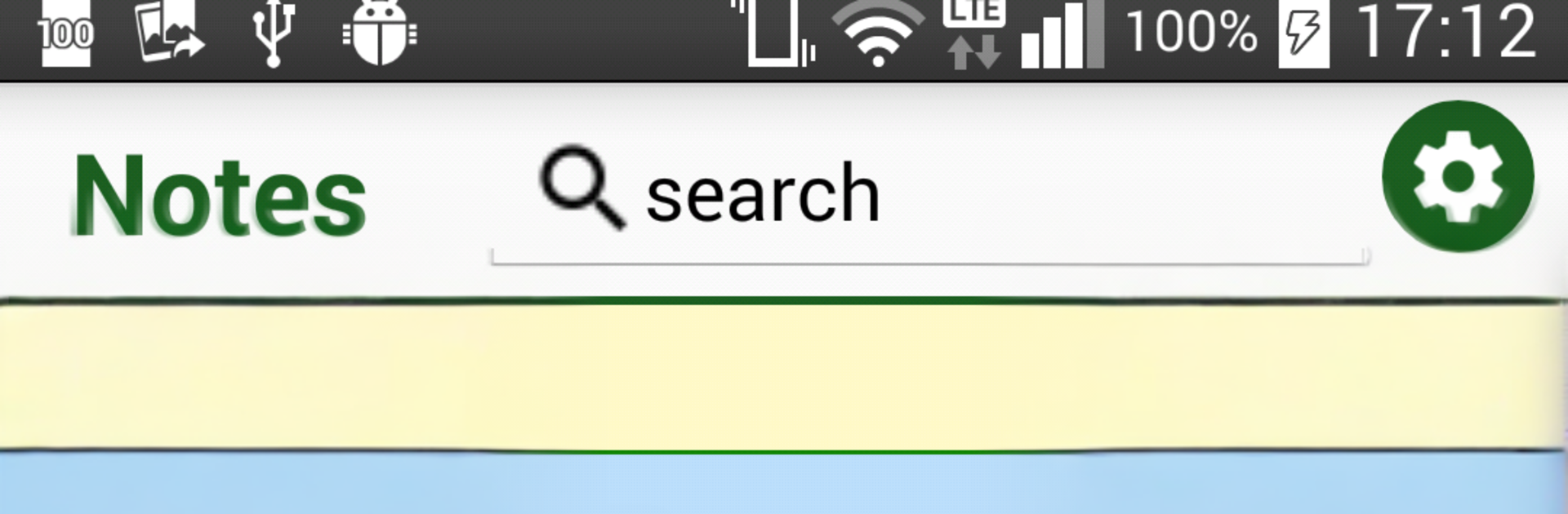
Notes - Notepad
Notes - Notepad

Notes - Notepad

Tools

| My Mobile Tools Lab

Play on PC with BlueStacks or from our cloud

  • Overview
  • How to Download

Page Modified On: November 03, 2025

Run Notes - Notepad on PC or Mac

Multitask effortlessly on your PC or Mac as you try out Notes – Notepad, a Tools app by My Mobile Tools Lab on BlueStacks.

Notes – Notepad feels like a plain notebook that just happens to live on a screen. No extras getting in the way. It opens quickly, lets someone start typing right away, and saves everything automatically, so there is no nervous moment about losing a thought. The app works well for small stuff like a grocery list or a reminder, and it also handles longer drafts for messages or emails without feeling heavy. Searching is simple. type a word and it pulls up the notes that match. Sharing text from other apps can instantly create a new note, which is handy when someone wants to keep a quote, a recipe line, or a tracking number. Import and export are there for backups or moving notes between devices, and the whole layout stays clean and easy to navigate.

Running it on a computer with BlueStacks makes it feel even more practical. A full keyboard makes fast lists and longer writing painless, copy and paste from a browser or document is smooth, and it is nice to keep the app in a small window while working on something else. There are no complicated menus to learn, no fancy formatting to mess up a simple thought. Just a straightforward note space that behaves the way a basic notepad should, with quick save, quick search, and a clear list of everything someone has written.

Ready to experience Notes – Notepad on a bigger screen, in all its glory? Download BlueStacks now.

How to Download and Run Notes - Notepad on PC or Mac

  • Download and install BlueStacks on your PC or Mac

  • Complete Google sign-in to access the Play Store, or do it later

  • Look for Notes - Notepad in the search bar at the top right corner

  • Click to install Notes - Notepad from the search results

  • Complete Google sign-in (if you skipped step 2) to install Notes - Notepad

  • Click the Notes - Notepad icon on the home screen to start playing

video
Watch Video

Minimum System Requirements

With BlueStacks 5, you can get started on a PC that fulfills the following requirements.

  • Operating System

    Microsoft Windows 7 or above, macOS 11 (Big Sur) or above

  • Processor

    Intel, AMD or Apple Silicon Processor

  • RAM

    at least 4GB

  • HDD

    10GB Free Disk Space

Note:

* You must be an Administrator on your PC. Up to date graphics drivers from Microsoft or the chipset vendor.

Notes - Notepad - FAQs

  • How to Run Notes - Notepad on Windows PC & Mac?

    Run Notes - Notepad on your PC or Mac by following these simple steps.

    • Click on ‘Download Notes - Notepad on PC’ to download BlueStacks
    • Install it and log-in to Google Play Store
    • Launch and run the app.
  • Why is BlueStacks the fastest and safest platform to play games on PC?

    BlueStacks respects your privacy and is always safe and secure to use. It does not carry any malware, spyware, or any sort of additional software that could harm your PC.

    It is engineered to optimize speed and performance for a seamless gaming experience.

  • What are Notes - Notepad PC requirements?

    Minimum requirement to run Notes - Notepad on your PC

    • OS: Microsoft Windows 7 and above:
    • Processor: Intel or AMD Processor:
    • RAM: Your PC must have at least 2GB of RAM. (Note that having 2GB or more disk space is not a substitute for RAM):
    • HDD: 5GB Free Disk Space.
    • You must be an Administrator on your PC.