Offline Browser : Save Website

Offline Browser : Save Website

Tools

| TechMesh

Play on PC with BlueStacks or from our cloud

  • Overview
  • How to Download

Page Modified On: October 13, 2025

Run Offline Browser : Save Website on PC or Mac

Upgrade your experience. Try Offline Browser : Save Website, the fantastic Tools app from TechMesh, from the comfort of your laptop, PC, or Mac, only on BlueStacks.

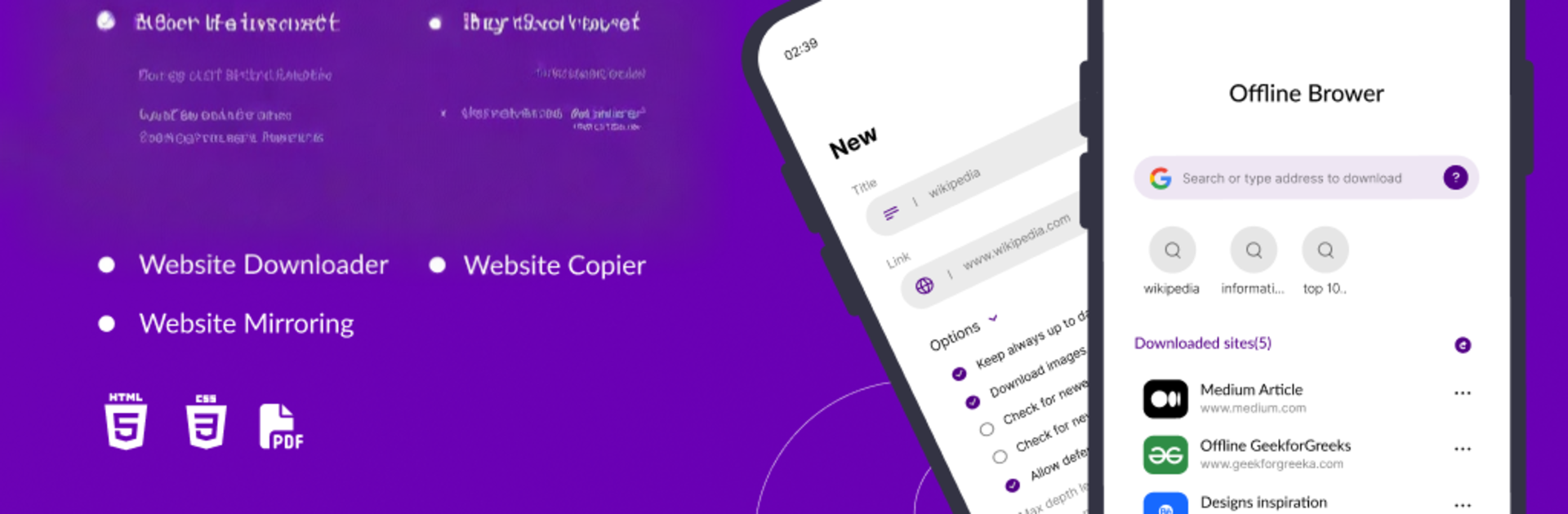
Offline Browser: Save Website feels less like a traditional browser and more like a neat little library builder. Paste a link, pick what needs saving, and it grabs the page for later with images and layout intact. It can pull a single article, a bunch of pages, or even whole sections when needed, then keeps everything organized so it is easy to find again. There is a snapshot style save for quick captures, a web archiver vibe for long term stuff, and a handy option to turn pages into PDFs when sharing or filing makes more sense. It even acts like a download manager, so pausing, resuming, or clearing out old saves is simple. On a PC with BlueStacks it runs smooth, and using a keyboard to name folders or paste links makes the whole thing feel faster.

This is the kind of tool that helps during commutes, flights, campus dead zones, or whenever data is tight. Blogs, how tos, news, research notes, it all goes into a personal offline catalog that loads instantly. It focuses on the content rather than bells and whistles, which is kind of the point. Some super interactive bits of the web will not behave the same offline, but for reading and reference it is solid. The caching is quick, storage use is reasonable, and the app does not get in the way. Set it up once, let it collect what matters, and there is always something ready to read even if the connection drops.

Big screen. Bigger performance. Use BlueStacks on your PC or Mac to run your favorite apps.

How to Download and Run Offline Browser : Save Website on PC or Mac

  • Download and install BlueStacks on your PC or Mac

  • Complete Google sign-in to access the Play Store, or do it later

  • Look for Offline Browser : Save Website in the search bar at the top right corner

  • Click to install Offline Browser : Save Website from the search results

  • Complete Google sign-in (if you skipped step 2) to install Offline Browser : Save Website

  • Click the Offline Browser : Save Website icon on the home screen to start playing

video
Watch Video

Minimum System Requirements

With BlueStacks 5, you can get started on a PC that fulfills the following requirements.

  • Operating System

    Microsoft Windows 7 or above, macOS 11 (Big Sur) or above

  • Processor

    Intel, AMD or Apple Silicon Processor

  • RAM

    at least 4GB

  • HDD

    10GB Free Disk Space

Note:

* You must be an Administrator on your PC. Up to date graphics drivers from Microsoft or the chipset vendor.

Offline Browser : Save Website - FAQs

  • How to Run Offline Browser : Save Website on Windows PC & Mac?

    Run Offline Browser : Save Website on your PC or Mac by following these simple steps.

    • Click on ‘Download Offline Browser : Save Website on PC’ to download BlueStacks
    • Install it and log-in to Google Play Store
    • Launch and run the app.
  • Why is BlueStacks the fastest and safest platform to play games on PC?

    BlueStacks respects your privacy and is always safe and secure to use. It does not carry any malware, spyware, or any sort of additional software that could harm your PC.

    It is engineered to optimize speed and performance for a seamless gaming experience.

  • What are Offline Browser : Save Website PC requirements?

    Minimum requirement to run Offline Browser : Save Website on your PC

    • OS: Microsoft Windows 7 and above:
    • Processor: Intel or AMD Processor:
    • RAM: Your PC must have at least 2GB of RAM. (Note that having 2GB or more disk space is not a substitute for RAM):
    • HDD: 5GB Free Disk Space.
    • You must be an Administrator on your PC.