Remote Control for RokuTV

Remote Control for RokuTV

Tools

| EVOLLY.APP

Play on PC with BlueStacks or from our cloud

  • Overview
  • How to Download

Page Modified On: September 19, 2025

Run Remote Control for RokuTV on PC or Mac

Let BlueStacks turn your PC, Mac, or laptop into the perfect home for Remote Control for RokuTV, a fun Tools app from EVOLLY.APP.

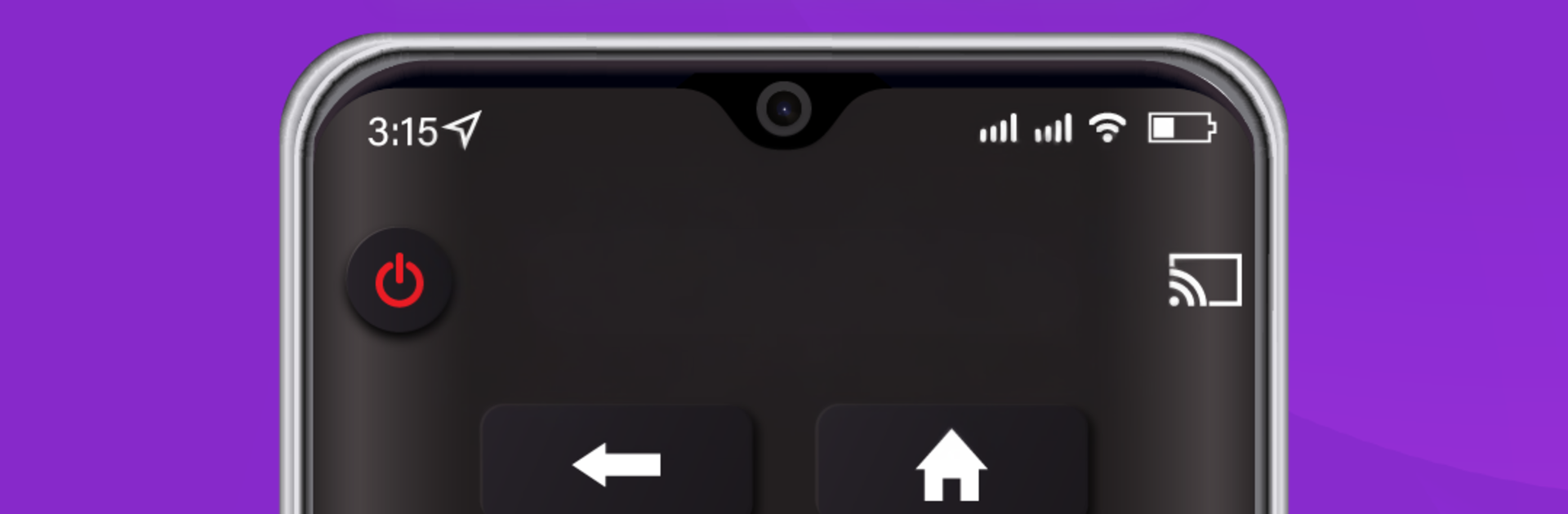
Remote Control for RokuTV feels like turning a phone or computer into a simple, no-fuss Roku remote. The layout is clean, the buttons are obvious, and that big touchpad makes scrolling through menus feel smooth instead of clunky. Someone opens the app, it finds the Roku on the same network, and that is pretty much it. Navigation is quick, and launching a channel from inside the app saves a few steps when there is a favorite service to jump into. The virtual keyboard is the real time saver. Typing movie titles or passwords goes from painful to normal, and voice search is there too when speaking is easier than pecking letters.

It works with different RokuTV versions and players, and the auto detection is fast when the Wi Fi is behaving. Running it through BlueStacks on a PC is actually nice if a keyboard and mouse are preferred. The touchpad maps well to a mouse, so flicking around the interface feels natural, and typing from a physical keyboard is a lot less annoying for long searches. There can be a tiny delay if the network is busy, but nothing deal breaking. It is also worth noting this is not the official Roku app, but it covers the basics people actually need without adding a lot of confusing extras.

BlueStacks gives you the much-needed freedom to experience your favorite apps on a bigger screen. Get it now.

How to Download and Run Remote Control for RokuTV on PC or Mac

  • Download and install BlueStacks on your PC or Mac

  • Complete Google sign-in to access the Play Store, or do it later

  • Look for Remote Control for RokuTV in the search bar at the top right corner

  • Click to install Remote Control for RokuTV from the search results

  • Complete Google sign-in (if you skipped step 2) to install Remote Control for RokuTV

  • Click the Remote Control for RokuTV icon on the home screen to start playing

video
Watch Video

Minimum System Requirements

With BlueStacks 5, you can get started on a PC that fulfills the following requirements.

  • Operating System

    Microsoft Windows 7 or above, macOS 11 (Big Sur) or above

  • Processor

    Intel, AMD or Apple Silicon Processor

  • RAM

    at least 4GB

  • HDD

    10GB Free Disk Space

Note:

* You must be an Administrator on your PC. Up to date graphics drivers from Microsoft or the chipset vendor.

Remote Control for RokuTV - FAQs

  • How to Run Remote Control for RokuTV on Windows PC & Mac?

    Run Remote Control for RokuTV on your PC or Mac by following these simple steps.

    • Click on ‘Download Remote Control for RokuTV on PC’ to download BlueStacks
    • Install it and log-in to Google Play Store
    • Launch and run the app.
  • Why is BlueStacks the fastest and safest platform to play games on PC?

    BlueStacks respects your privacy and is always safe and secure to use. It does not carry any malware, spyware, or any sort of additional software that could harm your PC.

    It is engineered to optimize speed and performance for a seamless gaming experience.

  • What are Remote Control for RokuTV PC requirements?

    Minimum requirement to run Remote Control for RokuTV on your PC

    • OS: Microsoft Windows 7 and above:
    • Processor: Intel or AMD Processor:
    • RAM: Your PC must have at least 2GB of RAM. (Note that having 2GB or more disk space is not a substitute for RAM):
    • HDD: 5GB Free Disk Space.
    • You must be an Administrator on your PC.