TCG Hub - Card Collection Tool

TCG Hub - Card Collection Tool

Tools

| Jacob Greenland

Play on PC with BlueStacks or from our cloud

  • Overview
  • How to Download

Page Modified On: October 04, 2025

Run TCG Hub - Card Collection Tool on PC or Mac

Why limit yourself to your small screen on the phone? Run TCG Hub – Card Collection Tool, an app by Jacob Greenland, best experienced on your PC or Mac with BlueStacks, the world’s #1 Android emulator.

About the App

If you collect trading cards and want a clean, no-fuss way to track what you own, TCG Hub – Card Collection Tool has your back. This unofficial fan-made Tools app from Jacob Greenland makes it simple to catalog cards, check prices, and watch your collection grow over time. New sets show up fast—often before they hit store shelves—so you’re ready the moment packs start opening. Prefer a bigger screen? It works smoothly on BlueStacks, too.

App Features

  • Quick camera scan: Point your camera at a card and add it instantly—no endless typing or manual searches.
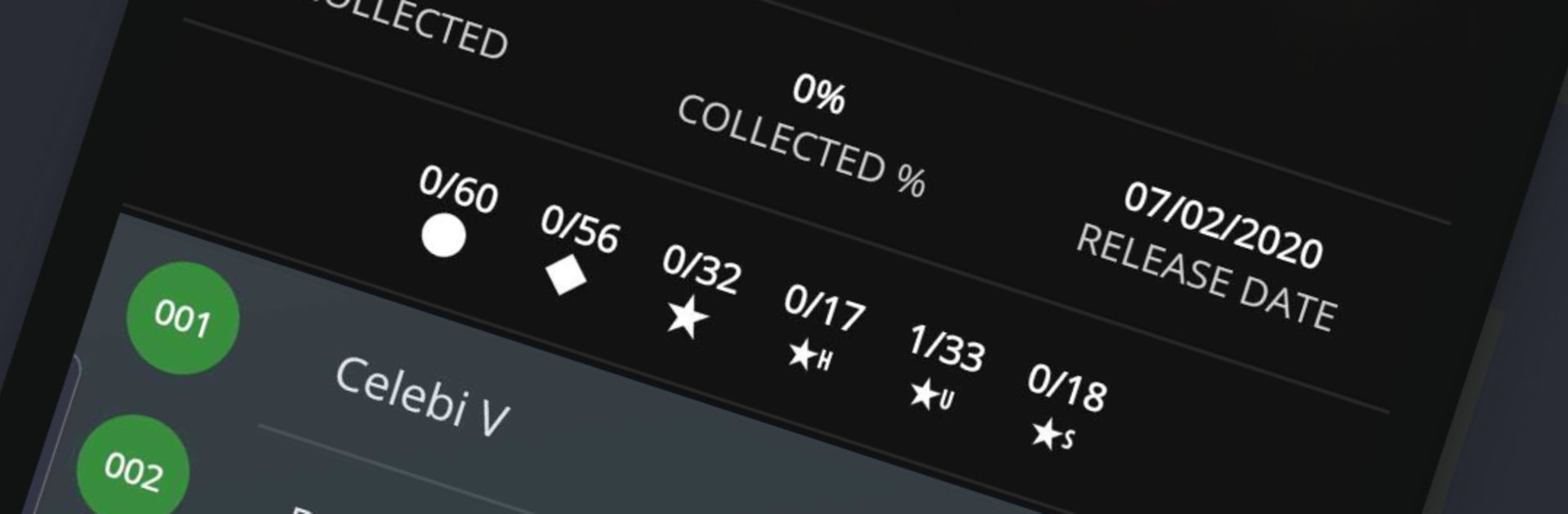
  • Smart collection tracking: See every card you own in one place, including Secret Rares, with clear progress for each set.
  • Price and value overview: Check prices for individual cards and get an overall collection value at a glance.
  • Wishlist for later: Mark cards you’re hunting so you don’t forget what to pick up next.
  • Optional cloud sync: Create a simple account to back up your data and access it anywhere; everything still works offline.
  • Always-updated database: Card details and new sets are pushed straight to the app—no full app update needed.
  • Trade checker: Mock a trade, compare values, and see if the deal looks fair for both sides.
  • Stats that matter: Breakdowns by rarity, duplicates, set completion, and more to guide your next move.
  • No paywalls, no ads: The entire experience is open and uncluttered—just you and your cards.

BlueStacks brings your apps to life on a bigger screen—seamless and straightforward.

How to Download and Run TCG Hub - Card Collection Tool on PC or Mac

  • Download and install BlueStacks on your PC or Mac

  • Complete Google sign-in to access the Play Store, or do it later

  • Look for TCG Hub - Card Collection Tool in the search bar at the top right corner

  • Click to install TCG Hub - Card Collection Tool from the search results

  • Complete Google sign-in (if you skipped step 2) to install TCG Hub - Card Collection Tool

  • Click the TCG Hub - Card Collection Tool icon on the home screen to start playing

video
Watch Video

Minimum System Requirements

With BlueStacks 5, you can get started on a PC that fulfills the following requirements.

  • Operating System

    Microsoft Windows 7 or above, macOS 11 (Big Sur) or above

  • Processor

    Intel, AMD or Apple Silicon Processor

  • RAM

    at least 4GB

  • HDD

    10GB Free Disk Space

Note:

* You must be an Administrator on your PC. Up to date graphics drivers from Microsoft or the chipset vendor.

TCG Hub - Card Collection Tool - FAQs

  • How to Run TCG Hub - Card Collection Tool on Windows PC & Mac?

    Run TCG Hub - Card Collection Tool on your PC or Mac by following these simple steps.

    • Click on ‘Download TCG Hub - Card Collection Tool on PC’ to download BlueStacks
    • Install it and log-in to Google Play Store
    • Launch and run the app.
  • Why is BlueStacks the fastest and safest platform to play games on PC?

    BlueStacks respects your privacy and is always safe and secure to use. It does not carry any malware, spyware, or any sort of additional software that could harm your PC.

    It is engineered to optimize speed and performance for a seamless gaming experience.

  • What are TCG Hub - Card Collection Tool PC requirements?

    Minimum requirement to run TCG Hub - Card Collection Tool on your PC

    • OS: Microsoft Windows 7 and above:
    • Processor: Intel or AMD Processor:
    • RAM: Your PC must have at least 2GB of RAM. (Note that having 2GB or more disk space is not a substitute for RAM):
    • HDD: 5GB Free Disk Space.
    • You must be an Administrator on your PC.