Timer & Stopwatch
Timer & Stopwatch

Timer & Stopwatch

Tools

| Peace

Play on PC with BlueStacks or from our cloud

  • Overview
  • How to Download

Page Modified On: June 09, 2026

Run Timer & Stopwatch on PC or Mac

What’s better than using Timer & Stopwatch by Peace? Well, try it on a big screen, on your PC or Mac, with BlueStacks to see the difference.

About the App

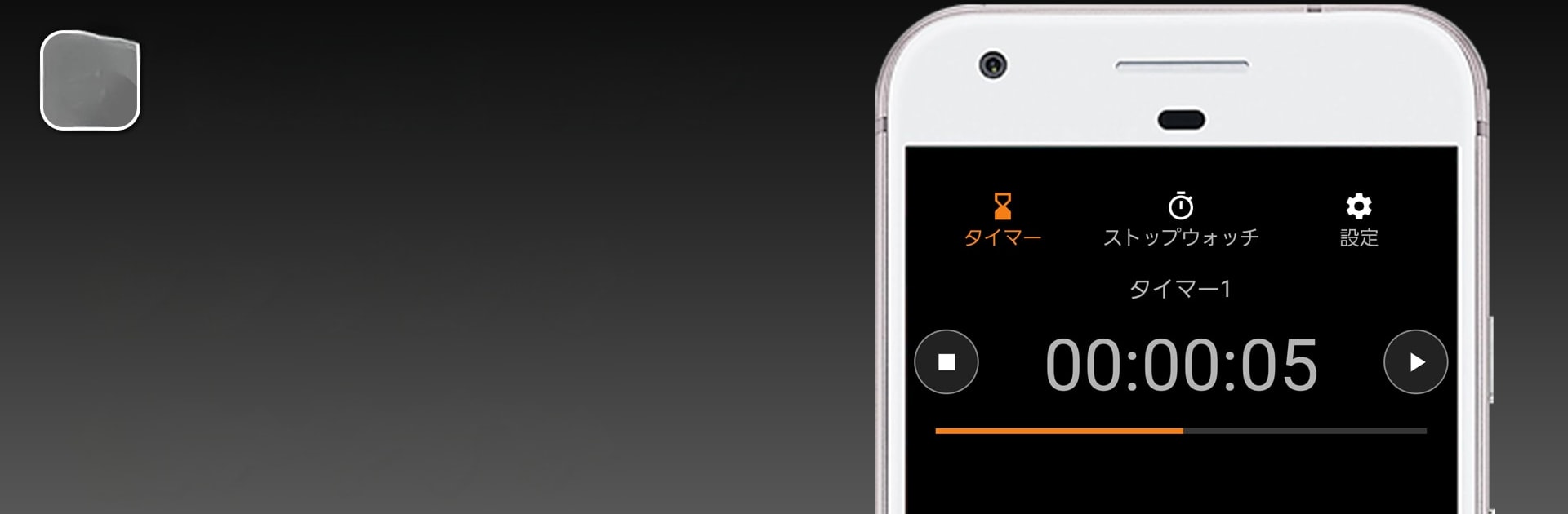
Timer & Stopwatch is a straightforward, no-fuss timekeeper that does exactly what you need, when you need it. Whether you’re timing a workout, tracking study sessions, or keeping an eye on a simmering sauce, it’s built to be precise and easy to use. Expect a clean, reliable experience from a solid Tools app—nothing distracting, just accurate timing.

App Features

  • Two simple modes: Switch between a countdown timer for set durations and a stopwatch for open-ended tracking. Perfect for quick sprints or longer sessions.
  • Accurate by design: Built to measure time precisely, from athletics and swimming practice to exams, development sprints, and manufacturing tasks.
  • No permissions needed: Runs without asking for access to your contacts, photos, or anything else. Just install and go.
  • Security-checked updates: Each release is scanned by trusted mobile security tools before it goes live, so you can use it with confidence.
  • Clean, quick controls: Start, pause, and reset in a tap. The interface keeps things clear so you can focus on your task, not the app.
  • Great for everyday tasks: Use it in the kitchen to time each step, during study blocks to stay on track, or at work to measure test cycles and focused intervals.
  • Desktop-friendly option: Prefer a bigger screen while you work? Run Timer & Stopwatch on BlueStacks and keep it handy alongside your other windows.
  • Lightweight and unobtrusive: Opens fast, stays out of your way, and helps you get on with whatever you’re timing.

BlueStacks brings your apps to life on a bigger screen—seamless and straightforward.

How to Download and Run Timer & Stopwatch on PC or Mac

  • Download and install BlueStacks on your PC or Mac

  • Complete Google sign-in to access the Play Store, or do it later

  • Look for Timer & Stopwatch in the search bar at the top right corner

  • Click to install Timer & Stopwatch from the search results

  • Complete Google sign-in (if you skipped step 2) to install Timer & Stopwatch

  • Click the Timer & Stopwatch icon on the home screen to start playing

video
Watch Video

Minimum System Requirements

With BlueStacks 5, you can get started on a PC that fulfills the following requirements.

  • Operating System

    Microsoft Windows 7 or above, macOS 11 (Big Sur) or above

  • Processor

    Intel, AMD or Apple Silicon Processor

  • RAM

    at least 4GB

  • HDD

    10GB Free Disk Space

Note:

* You must be an Administrator on your PC. Up to date graphics drivers from Microsoft or the chipset vendor.

Timer & Stopwatch - FAQs

  • How to Run Timer & Stopwatch on Windows PC & Mac?

    Run Timer & Stopwatch on your PC or Mac by following these simple steps.

    • Click on ‘Download Timer & Stopwatch on PC’ to download BlueStacks
    • Install it and log-in to Google Play Store
    • Launch and run the app.
  • Why is BlueStacks the fastest and safest platform to play games on PC?

    BlueStacks respects your privacy and is always safe and secure to use. It does not carry any malware, spyware, or any sort of additional software that could harm your PC.

    It is engineered to optimize speed and performance for a seamless gaming experience.

  • What are Timer & Stopwatch PC requirements?

    Minimum requirement to run Timer & Stopwatch on your PC

    • OS: Microsoft Windows 7 and above:
    • Processor: Intel or AMD Processor:
    • RAM: Your PC must have at least 2GB of RAM. (Note that having 2GB or more disk space is not a substitute for RAM):
    • HDD: 5GB Free Disk Space.
    • You must be an Administrator on your PC.