Who Uses My WiFi Pro

Who Uses My WiFi Pro

Tools

| Phuongpn

Play on PC with BlueStacks or from our cloud

  • Overview
  • How to Download

Page Modified On: July 25, 2025

Run Who Uses My WiFi Pro on PC or Mac

Let BlueStacks turn your PC, Mac, or laptop into the perfect home for Who Uses My WiFi Pro, a fun Tools app from Phuongpn.

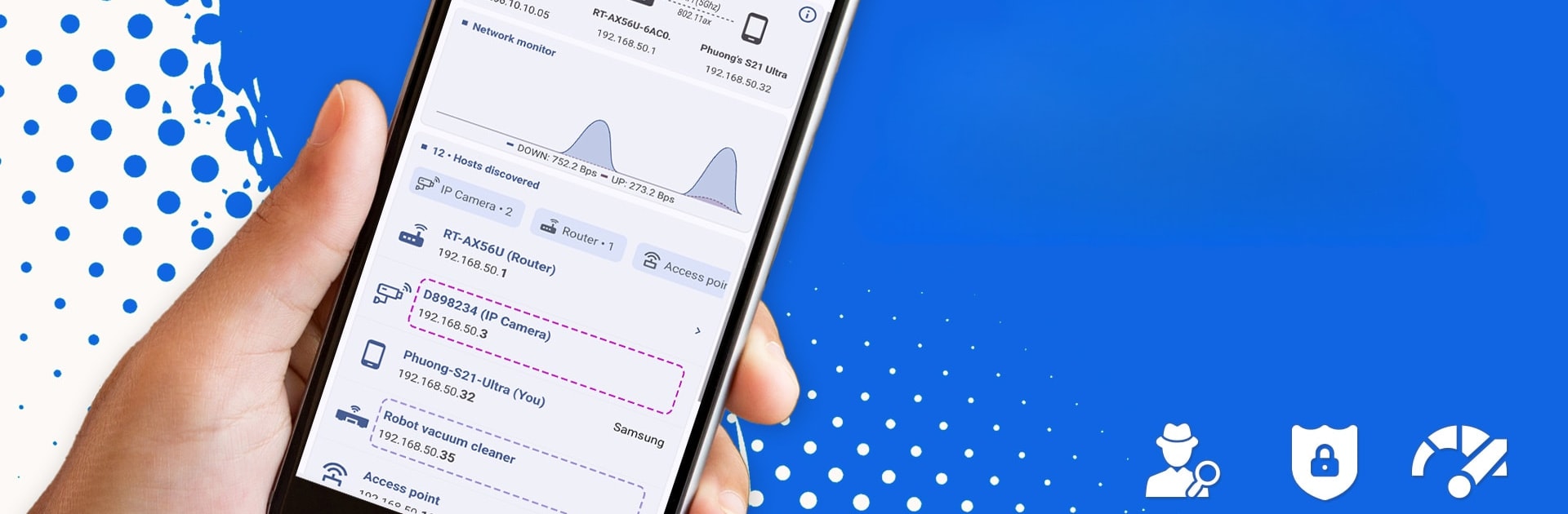
Who Uses My WiFi Pro is one of those tools that’s surprisingly useful, especially when run on a bigger PC screen with BlueStacks. The whole idea is about figuring out who or what is connected to your WiFi. A lot of people end up with slower internet, not realizing there are other devices freeloading on their network — this app shows exactly what’s on there. Right off the bat, there’s a quick scan button that lists every device using the WiFi, showing not just phones and laptops but even IP cameras and smart home stuff. That part is actually pretty satisfying, just seeing everything laid out.

The app doesn’t stop at just listing what’s online; it’ll try to flag things that look odd or unfamiliar, which is great for tracking down why the network’s been sluggish. It’s got extra tools, like checking which ports are open or testing how fast the connection responds, and it even lets users get into router settings without a headache. For anyone who keeps mixing up router passwords, there’s a handy list to look up defaults and get back in if something got reset. It’s way more detailed than what routers usually show, and that makes it easy to spot devices that shouldn’t be there and kick them off. For folks who like keeping tabs on their home network or get tired of unexplained slowdowns, this can save a lot of trouble.

Switch to BlueStacks and make the most of your apps on your PC or Mac.

How to Download and Run Who Uses My WiFi Pro on PC or Mac

  • Download and install BlueStacks on your PC or Mac

  • Complete Google sign-in to access the Play Store, or do it later

  • Look for Who Uses My WiFi Pro in the search bar at the top right corner

  • Click to install Who Uses My WiFi Pro from the search results

  • Complete Google sign-in (if you skipped step 2) to install Who Uses My WiFi Pro

  • Click the Who Uses My WiFi Pro icon on the home screen to start playing

video
Watch Video

Minimum System Requirements

With BlueStacks 5, you can get started on a PC that fulfills the following requirements.

  • Operating System

    Microsoft Windows 7 or above, macOS 11 (Big Sur) or above

  • Processor

    Intel, AMD or Apple Silicon Processor

  • RAM

    at least 4GB

  • HDD

    10GB Free Disk Space

Note:

* You must be an Administrator on your PC. Up to date graphics drivers from Microsoft or the chipset vendor.

Who Uses My WiFi Pro - FAQs

  • How to Run Who Uses My WiFi Pro on Windows PC & Mac?

    Run Who Uses My WiFi Pro on your PC or Mac by following these simple steps.

    • Click on ‘Download Who Uses My WiFi Pro on PC’ to download BlueStacks
    • Install it and log-in to Google Play Store
    • Launch and run the app.
  • Why is BlueStacks the fastest and safest platform to play games on PC?

    BlueStacks respects your privacy and is always safe and secure to use. It does not carry any malware, spyware, or any sort of additional software that could harm your PC.

    It is engineered to optimize speed and performance for a seamless gaming experience.

  • What are Who Uses My WiFi Pro PC requirements?

    Minimum requirement to run Who Uses My WiFi Pro on your PC

    • OS: Microsoft Windows 7 and above:
    • Processor: Intel or AMD Processor:
    • RAM: Your PC must have at least 2GB of RAM. (Note that having 2GB or more disk space is not a substitute for RAM):
    • HDD: 5GB Free Disk Space.
    • You must be an Administrator on your PC.