XFINITY WiFi Settings

XFINITY WiFi Settings

Tools

| Comcast

Play on PC with BlueStacks or from our cloud

  • Overview
  • How to Download

Page Modified On: August 29, 2025

Run XFINITY WiFi Settings on PC or Mac

What’s better than using XFINITY WiFi Settings by Comcast? Well, try it on a big screen, on your PC or Mac, with BlueStacks to see the difference.

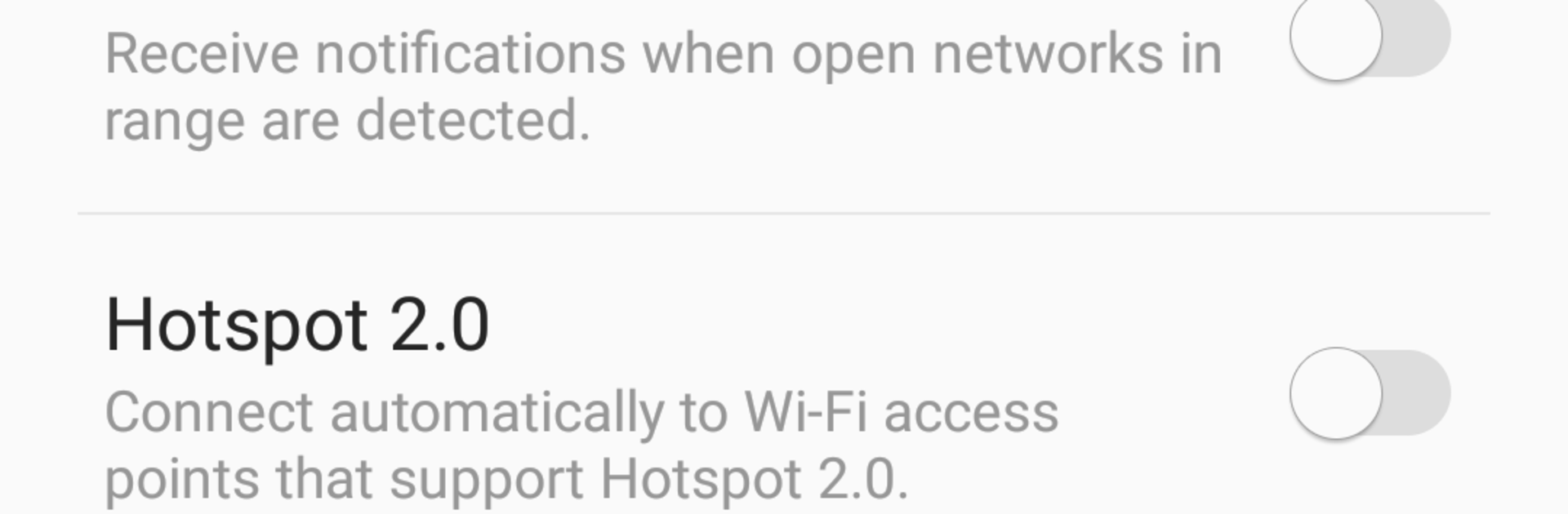
XFINITY WiFi Settings is a small, no-nonsense utility that keeps an XFINITY Mobile device connected to their public hotspots without extra logins. It sits quietly in the background, watches for available networks, then picks what looks like the strongest, most reliable option and switches over on its own. The interface is very barebones, more like a switchboard than an app to tinker with. A couple of toggles, a status line that shows what it connected to, and that is about it. It feels very set-it-and-forget-it, which is honestly the point.

On a PC through BlueStacks, it is mainly useful for seeing the settings and how the auto-connect logic is set up in a larger window, but the real magic happens when the device is on actual mobile hardware and near XFINITY hotspots. It does require an active XFINITY Mobile subscription, so anyone outside that bubble will not get much out of it. Updates sometimes ask for a restart, which on a phone means a quick reboot, and in an emulator usually just closing and re-opening does the trick. There are no fancy extras or busy screens here. If someone wants fewer prompts and fewer passwords when moving around town on XFINITY’s network, this keeps things simple and consistent.

BlueStacks brings your apps to life on a bigger screen—seamless and straightforward.

How to Download and Run XFINITY WiFi Settings on PC or Mac

  • Download and install BlueStacks on your PC or Mac

  • Complete Google sign-in to access the Play Store, or do it later

  • Look for XFINITY WiFi Settings in the search bar at the top right corner

  • Click to install XFINITY WiFi Settings from the search results

  • Complete Google sign-in (if you skipped step 2) to install XFINITY WiFi Settings

  • Click the XFINITY WiFi Settings icon on the home screen to start playing

video
Watch Video

Minimum System Requirements

With BlueStacks 5, you can get started on a PC that fulfills the following requirements.

  • Operating System

    Microsoft Windows 7 or above, macOS 11 (Big Sur) or above

  • Processor

    Intel, AMD or Apple Silicon Processor

  • RAM

    at least 4GB

  • HDD

    10GB Free Disk Space

Note:

* You must be an Administrator on your PC. Up to date graphics drivers from Microsoft or the chipset vendor.

XFINITY WiFi Settings - FAQs

  • How to Run XFINITY WiFi Settings on Windows PC & Mac?

    Run XFINITY WiFi Settings on your PC or Mac by following these simple steps.

    • Click on ‘Download XFINITY WiFi Settings on PC’ to download BlueStacks
    • Install it and log-in to Google Play Store
    • Launch and run the app.
  • Why is BlueStacks the fastest and safest platform to play games on PC?

    BlueStacks respects your privacy and is always safe and secure to use. It does not carry any malware, spyware, or any sort of additional software that could harm your PC.

    It is engineered to optimize speed and performance for a seamless gaming experience.

  • What are XFINITY WiFi Settings PC requirements?

    Minimum requirement to run XFINITY WiFi Settings on your PC

    • OS: Microsoft Windows 7 and above:
    • Processor: Intel or AMD Processor:
    • RAM: Your PC must have at least 2GB of RAM. (Note that having 2GB or more disk space is not a substitute for RAM):
    • HDD: 5GB Free Disk Space.
    • You must be an Administrator on your PC.