XPlaneCDU
XPlaneCDU

XPlaneCDU

Tools

| Wayne Piekarski

Play on PC with BlueStacks or from our cloud

  • Overview
  • How to Download

Page Modified On: October 03, 2025

Run XPlaneCDU on PC or Mac

Multitask effortlessly on your PC or Mac as you try out XPlaneCDU, a Tools app by Wayne Piekarski on BlueStacks.

About the App

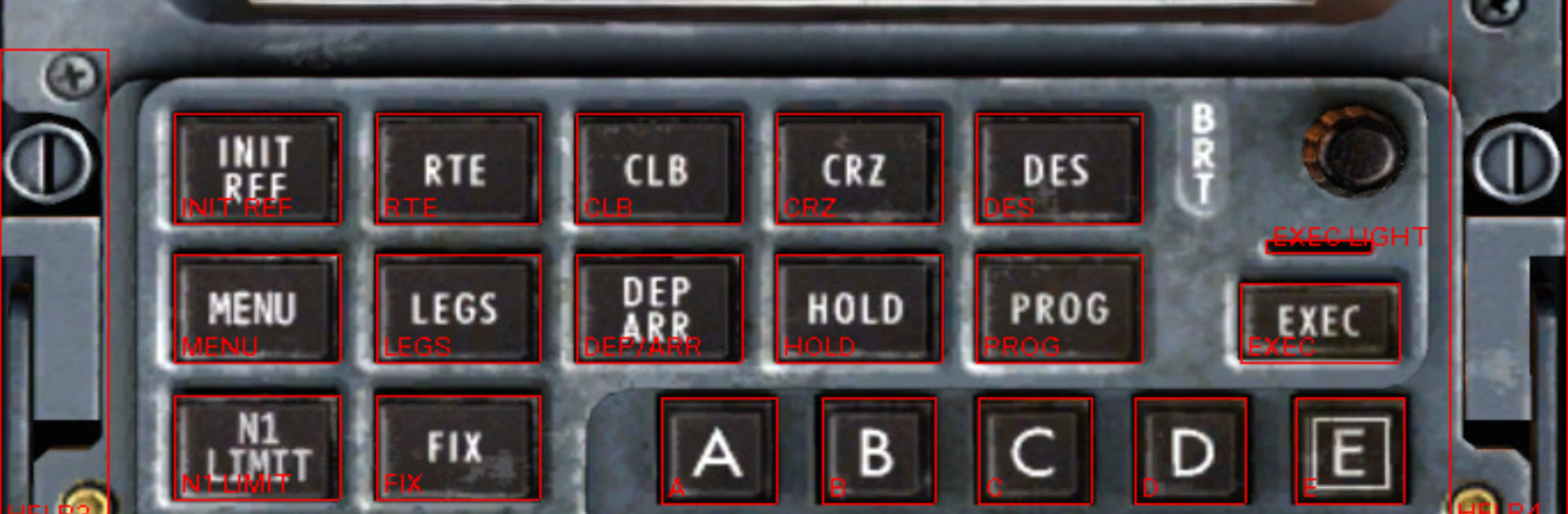
XPlaneCDU puts your aircraft’s Control Display Unit right on your Android phone or tablet, so you don’t have to poke around with a mouse in the virtual cockpit. It mirrors the CDU from X‑Plane 11 for supported aircraft and lets you type, navigate pages, and manage entries on a comfy second screen. Built by Wayne Piekarski, this Tools app keeps things simple: it’s a smart remote for the CDU you already have in the sim.

App Features

  • Remote CDU control: Operate the CDU for supported X‑Plane 11 aircraft directly from your device. It’s not an FMS replacement—just a clean, responsive remote for the sim’s existing CDU.

  • Supported aircraft: Works with the Zibo Boeing 737 and the SSG 747. The default X‑Plane 737 isn’t supported, and many payware birds use custom datarefs, but anything exposing CDU text datarefs can be made to work.

  • Quick connection: Auto-detects your running X‑Plane via multicast on your network. No multicast? Tap the connection text or CDU screen to enter a manual hostname or IP.

  • Straightforward setup: Requires the ExtPlane v2 plugin in your X‑Plane 11 Resources/plugins folder and an open TCP port 51000 in your firewall. Once that’s in place, you’re off and running.

  • Designed for any screen: Thoughtful layout scales nicely from small phones to big tablets, keeping keys readable and taps precise.

  • Open-source roots: Released under GPLv3 and crafted in Kotlin by Wayne Piekarski—great for folks who like to tweak or learn how it’s built.

  • Runs great on desktop: Prefer the CDU on your computer’s monitor? You can launch the Android app in BlueStacks and park it next to your sim windows.

BlueStacks gives you the much-needed freedom to experience your favorite apps on a bigger screen. Get it now.


How to Download and Run XPlaneCDU on PC or Mac

  • Download and install BlueStacks on your PC or Mac

  • Complete Google sign-in to access the Play Store, or do it later

  • Look for XPlaneCDU in the search bar at the top right corner

  • Click to install XPlaneCDU from the search results

  • Complete Google sign-in (if you skipped step 2) to install XPlaneCDU

  • Click the XPlaneCDU icon on the home screen to start playing

video
Watch Video

Minimum System Requirements

With BlueStacks 5, you can get started on a PC that fulfills the following requirements.

  • Operating System

    Microsoft Windows 7 or above, macOS 11 (Big Sur) or above

  • Processor

    Intel, AMD or Apple Silicon Processor

  • RAM

    at least 4GB

  • HDD

    10GB Free Disk Space

Note:

* You must be an Administrator on your PC. Up to date graphics drivers from Microsoft or the chipset vendor.

XPlaneCDU - FAQs

  • How to Run XPlaneCDU on Windows PC & Mac?

    Run XPlaneCDU on your PC or Mac by following these simple steps.

    • Click on ‘Download XPlaneCDU on PC’ to download BlueStacks
    • Install it and log-in to Google Play Store
    • Launch and run the app.
  • Why is BlueStacks the fastest and safest platform to play games on PC?

    BlueStacks respects your privacy and is always safe and secure to use. It does not carry any malware, spyware, or any sort of additional software that could harm your PC.

    It is engineered to optimize speed and performance for a seamless gaming experience.

  • What are XPlaneCDU PC requirements?

    Minimum requirement to run XPlaneCDU on your PC

    • OS: Microsoft Windows 7 and above:
    • Processor: Intel or AMD Processor:
    • RAM: Your PC must have at least 2GB of RAM. (Note that having 2GB or more disk space is not a substitute for RAM):
    • HDD: 5GB Free Disk Space.
    • You must be an Administrator on your PC.