How to Transfer Your PUBG Mobile Account, UC, and Skins to PUBG Mobile Flash
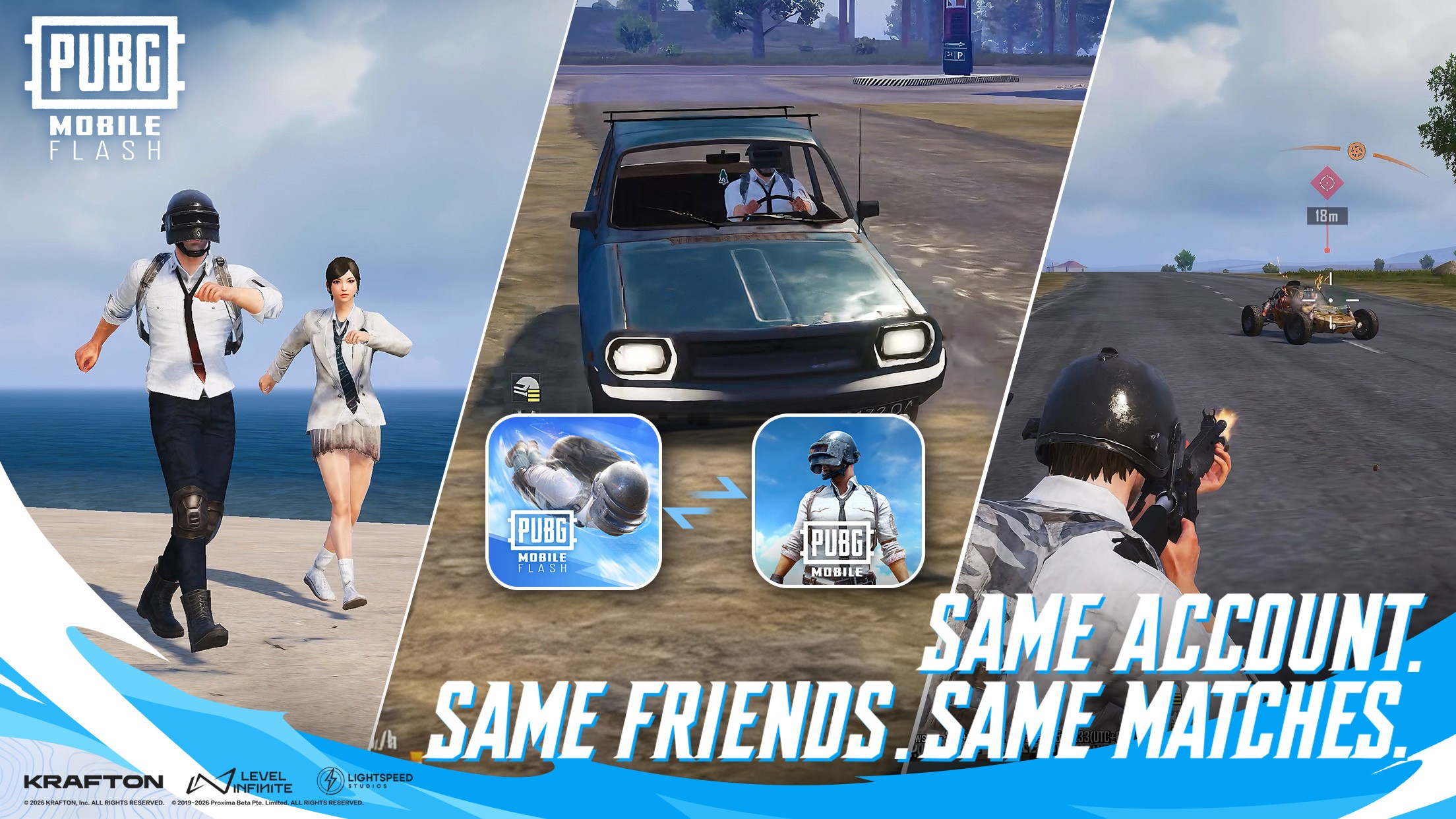
Switching to PUBG Mobile Flash doesn’t mean starting your PUBG Mobile journey from scratch. The lighter version shares the same account system as the original game, allowing you to access your existing profile, friends, and owned items.
The best part is that there’s no complicated transfer process. Whether you’re playing on a mobile device or using BlueStacks on PC, you simply need to sign in with the account linked to your original PUBG Mobile profile.
Here’s how it works and what you should check after logging in.
How to Transfer Your PUBG Mobile Account to PUBG Mobile Flash
PUBG Mobile Flash uses the same account ecosystem as the standard game. That means you don’t need to export save files, copy game data, or create a separate profile.
Follow these steps to access your existing account:
- Launch PUBG Mobile Flash. Open the game on your device or through BlueStacks on PC.
- Select your original login method. Choose the sign-in option connected to your existing PUBG Mobile account, such as Google, if that’s how you normally log in.
- Sign in with the same account. Make sure you’re selecting the correct Google account or other linked login.
- Wait for your profile to load. PUBG Mobile Flash should recognize your existing account rather than starting a new one.
- Check your account details. Confirm that your player name, friends list, progress, and inventory appear correctly.

That’s all you need to do. Your account is shared between the two versions, so there’s no separate account migration tool to use.
Do UC, Skins, and Progress Carry Over?
PUBG Mobile Flash officially supports shared accounts and in-game assets. This means your owned skins, outfits, and other inventory items remain associated with your existing PUBG Mobile account.
However, some cosmetics may initially look different. Since Flash uses a smaller installation, it can display temporary appearances for outfits whose full resources haven’t been downloaded. You can download those resources to see the original cosmetic designs.

Your existing profile and account-linked progress should also be available when you sign in.
What about UC? Because both versions use the same account, you should check your existing UC balance after logging in. While shared in-game assets are officially confirmed, UC balances haven’t been separately detailed in the published account-sharing information. If your balance appears incorrect, verify it before making additional purchases.
What If Your PUBG Mobile Account Doesn’t Appear?
If PUBG Mobile Flash loads a new profile instead of your existing one, the most likely issue is that you’ve selected a different login.
First, check that you’re using the same Google account or other linked sign-in method as your original PUBG Mobile profile. Also, if you have multiple Google accounts, verify which one is connected to your main character. In this sense, avoid creating a new guest account when you’re trying to access existing progress. And finally, if your profile loads correctly but certain outfits look different, check whether their additional resources need to be downloaded.
This last one is especially important since it can affect the visuals, assets, and other aspects of the game if the required data isn’t downloaded. Keep an eye out for download icons in these menus that you can click to download the required data.

For missing UC or other account items, contact PUBG Mobile’s official support if the issue continues.
With BlueStacks, you can access your existing PUBG Mobile account on PC while enjoying keyboard and mouse controls, a larger display, and customizable performance settings.
Since PUBG Mobile Flash shares account data with the original game, you can switch between the two versions without creating a new character or rebuilding your inventory.