Promiedos
Promiedos

Promiedos

Sports

| StandFortyTwo

Play on PC with BlueStacks or from our cloud

  • Overview
  • How to Download

Page Modified On: June 02, 2025

Run Promiedos on PC or Mac

Why limit yourself to your small screen on the phone? Run Promiedos, an app by StandFortyTwo, best experienced on your PC or Mac with BlueStacks, the world’s #1 Android emulator.

About the App

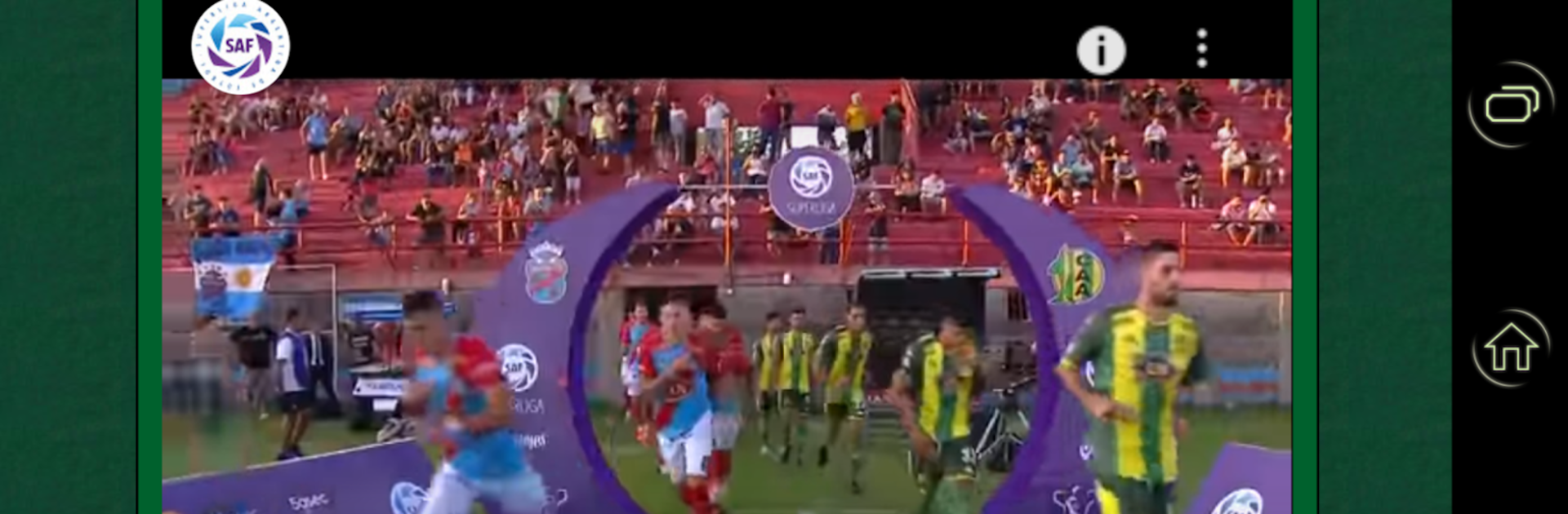
Whether you’re serious about soccer or just like catching up on the latest scores, Promiedos puts a world of football right at your fingertips. Created by StandFortyTwo, this easygoing app brings news, statistics, and match info from Argentina and beyond, all pulled together in a single place. If you’re tired of missing a good goal or want to check how your team’s stacking up, you’ll find plenty to dig into here.

App Features

  • All About Leagues
    From Argentina’s classic Superliga to the English Premier League, La Liga, Serie A, Bundesliga, and even leagues in Mexico and the U.S., Promiedos makes it simple to follow your favorites, no matter where you are.
  • Tournaments and Cups Galore
    Keep tabs on the excitement of the Copa Libertadores, Champions League, Copa Sudamericana, Europa League, Copa America, and plenty of others. Curious who lifted the trophy last year (or years ago)? You’ll find champions’ lists for nearly every cup and league.
  • Detailed Argentinian Soccer Histories
    Enjoy deep dives into Argentina’s football legacy, complete with club rankings and historical stats you won’t want to miss.
  • Up-to-the-Minute Stats
    Check live scores, results, and updated rankings so you’re always in the loop—even during nail-biting matches.
  • Community Talks
    Share your opinions or jump into a debate with fans worldwide. Chat about today’s game or dig into old rivalries.
  • Smooth, Simple Experience
    The revamped design keeps things looking sharp and super easy to use. Plus, you can open Promiedos on bigger screens with BlueStacks for even more comfort.
  • Women’s Soccer, Too!
    Explore fixtures, results, and highlights from women’s football leagues and matches—because the beautiful game belongs to everyone.

BlueStacks brings your apps to life on a bigger screen—seamless and straightforward.

How to Download and Run Promiedos on PC or Mac

  • Download and install BlueStacks on your PC or Mac

  • Complete Google sign-in to access the Play Store, or do it later

  • Look for Promiedos in the search bar at the top right corner

  • Click to install Promiedos from the search results

  • Complete Google sign-in (if you skipped step 2) to install Promiedos

  • Click the Promiedos icon on the home screen to start playing

video
Watch Video

Minimum System Requirements

With BlueStacks 5, you can get started on a PC that fulfills the following requirements.

  • Operating System

    Microsoft Windows 7 or above, macOS 11 (Big Sur) or above

  • Processor

    Intel, AMD or Apple Silicon Processor

  • RAM

    at least 4GB

  • HDD

    10GB Free Disk Space

Note:

* You must be an Administrator on your PC. Up to date graphics drivers from Microsoft or the chipset vendor.

Promiedos - FAQs

  • How to Run Promiedos on Windows PC & Mac?

    Run Promiedos on your PC or Mac by following these simple steps.

    • Click on ‘Download Promiedos on PC’ to download BlueStacks
    • Install it and log-in to Google Play Store
    • Launch and run the app.
  • Why is BlueStacks the fastest and safest platform to play games on PC?

    BlueStacks respects your privacy and is always safe and secure to use. It does not carry any malware, spyware, or any sort of additional software that could harm your PC.

    It is engineered to optimize speed and performance for a seamless gaming experience.

  • What are Promiedos PC requirements?

    Minimum requirement to run Promiedos on your PC

    • OS: Microsoft Windows 7 and above:
    • Processor: Intel or AMD Processor:
    • RAM: Your PC must have at least 2GB of RAM. (Note that having 2GB or more disk space is not a substitute for RAM):
    • HDD: 5GB Free Disk Space.
    • You must be an Administrator on your PC.