Barometer and Altimeter App

Barometer and Altimeter App

Tools

| Prometheus Interactive LLC

Play on PC with BlueStacks or from our cloud

  • Overview
  • How to Download

Page Modified On: January 02, 2026

Run Barometer and Altimeter App on PC or Mac

Let BlueStacks turn your PC, Mac, or laptop into the perfect home for Barometer and Altimeter App, a fun Tools app from Prometheus Interactive LLC.

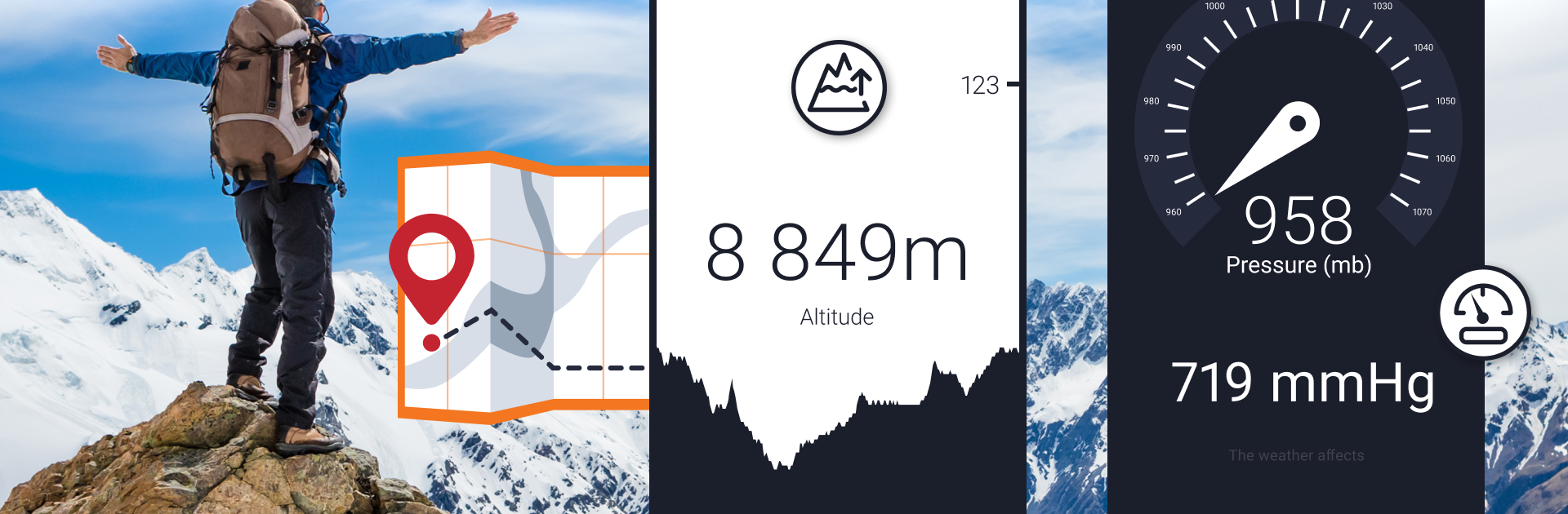
Barometer and Altimeter App feels like a clean, no‑nonsense tool that shows pressure and elevation without any fluff or ads getting in the way. Open it and there is a big, clear readout, then a couple of quick options so they can switch pressure units between mbar, hPa, inHg, or mmHg, and altitude in meters, feet, or yards. The notification bar option is handy, since it keeps a tiny pressure number visible while they do other stuff, whether that is planning a hike or just watching a storm roll through. It all runs off the device’s built‑in pressure sensor, so accuracy is solid when that hardware is present. If the phone or tablet does not have that sensor, it will not magically appear, and altitude will still wobble a bit with weather shifts, which the app is upfront about.

The layout is simple and light, not the kind of app that buries settings three screens deep. It suits hikers, climbers, and weather nerds who just want numbers that behave. On a PC with BlueStacks, the larger screen makes the readouts easy to keep open beside maps or route notes, though sensor support still depends on the hardware the emulator can see. No tutorials to fight, no popups, just a straightforward barometer and altimeter that stays out of the way and lets them check what they need fast.

Ready to experience Barometer and Altimeter App on a bigger screen, in all its glory? Download BlueStacks now.


How to Download and Run Barometer and Altimeter App on PC or Mac

  • Download and install BlueStacks on your PC or Mac

  • Complete Google sign-in to access the Play Store, or do it later

  • Look for Barometer and Altimeter App in the search bar at the top right corner

  • Click to install Barometer and Altimeter App from the search results

  • Complete Google sign-in (if you skipped step 2) to install Barometer and Altimeter App

  • Click the Barometer and Altimeter App icon on the home screen to start playing

video
Watch Video

Minimum System Requirements

With BlueStacks 5, you can get started on a PC that fulfills the following requirements.

  • Operating System

    Microsoft Windows 7 or above, macOS 11 (Big Sur) or above

  • Processor

    Intel, AMD or Apple Silicon Processor

  • RAM

    at least 4GB

  • HDD

    10GB Free Disk Space

Note:

* You must be an Administrator on your PC. Up to date graphics drivers from Microsoft or the chipset vendor.

Barometer and Altimeter App - FAQs

  • How to Run Barometer and Altimeter App on Windows PC & Mac?

    Run Barometer and Altimeter App on your PC or Mac by following these simple steps.

    • Click on ‘Download Barometer and Altimeter App on PC’ to download BlueStacks
    • Install it and log-in to Google Play Store
    • Launch and run the app.
  • Why is BlueStacks the fastest and safest platform to play games on PC?

    BlueStacks respects your privacy and is always safe and secure to use. It does not carry any malware, spyware, or any sort of additional software that could harm your PC.

    It is engineered to optimize speed and performance for a seamless gaming experience.

  • What are Barometer and Altimeter App PC requirements?

    Minimum requirement to run Barometer and Altimeter App on your PC

    • OS: Microsoft Windows 7 and above:
    • Processor: Intel or AMD Processor:
    • RAM: Your PC must have at least 2GB of RAM. (Note that having 2GB or more disk space is not a substitute for RAM):
    • HDD: 5GB Free Disk Space.
    • You must be an Administrator on your PC.