
Device Help
Device Help

Device Help

Tools

| Motorola Mobility LLC.

Play on PC with BlueStacks or from our cloud

  • Overview
  • How to Download

Page Modified On: October 05, 2026

Run Device Help on PC or Mac

Let BlueStacks turn your PC, Mac, or laptop into the perfect home for Device Help, a fun Tools app from Motorola Mobility LLC..

About the App

Device Help keeps your device running smoothly and makes everyday fixes a whole lot easier. This handy Tools app brings tips, tests, and support into one spot, so you can solve problems without the guesswork. Prefer a bigger screen and a keyboard? You can run Device Help with BlueStacks, too.

App Features

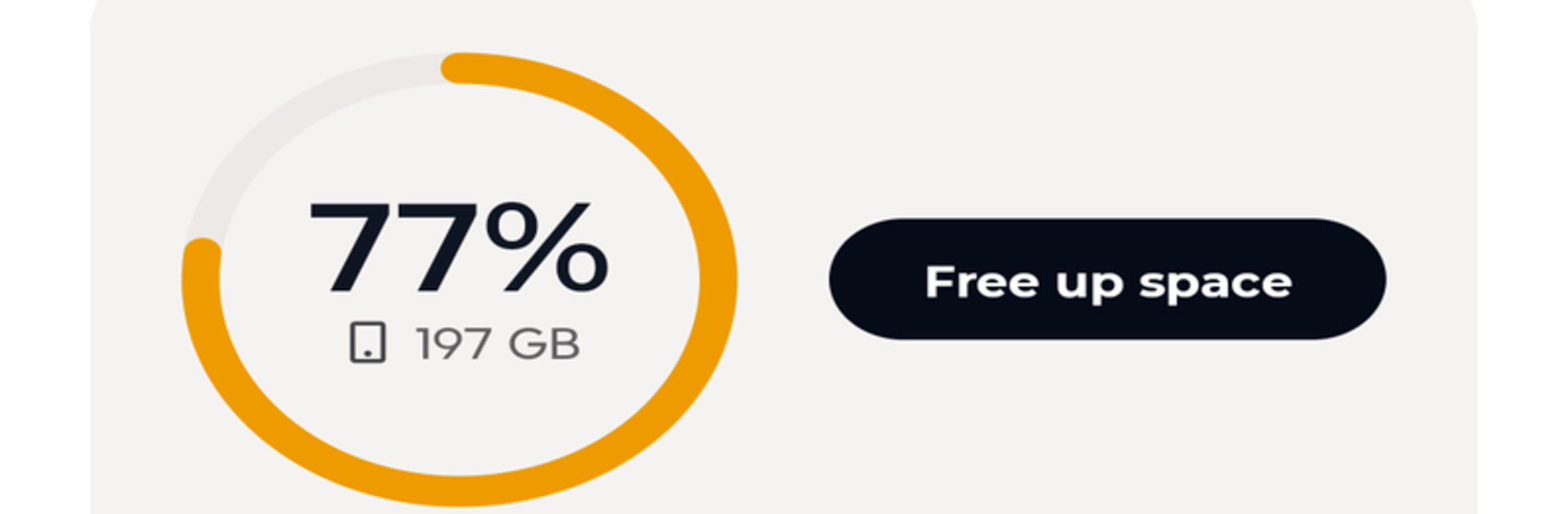
  • Smart health check: Scan your device to spot slowdowns, battery drains, or storage clutter, then follow clear suggestions to boost performance (available on select models).
  • Learn your device: Browse straightforward how‑to guides and troubleshooting tips that explain features in plain English and walk you through common fixes.
  • Built-in hardware tests: Run quick checks for things like display, sound, and sensors to make sure everything’s working the way it should.
  • Warranty at a glance: See your current warranty status in one clean view—no digging through paperwork.
  • Moto Care options: In the US, review extended warranty and accident protection choices and check eligibility right from the app.
  • AI support chat: Get answers fast with a built-in chatbot that connects you to helpful info and support on compatible models.

Switch to BlueStacks and make the most of your apps on your PC or Mac.
How to Download and Run Device Help on PC or Mac

  • Download and install BlueStacks on your PC or Mac

  • Complete Google sign-in to access the Play Store, or do it later

  • Look for Device Help in the search bar at the top right corner

  • Click to install Device Help from the search results

  • Complete Google sign-in (if you skipped step 2) to install Device Help

  • Click the Device Help icon on the home screen to start playing

video
Watch Video

Minimum System Requirements

With BlueStacks 5, you can get started on a PC that fulfills the following requirements.

  • Operating System

    Microsoft Windows 7 or above, macOS 11 (Big Sur) or above

  • Processor

    Intel, AMD or Apple Silicon Processor

  • RAM

    at least 4GB

  • HDD

    10GB Free Disk Space

Note:

* You must be an Administrator on your PC. Up to date graphics drivers from Microsoft or the chipset vendor.

Device Help - FAQs

  • How to Run Device Help on Windows PC & Mac?

    Run Device Help on your PC or Mac by following these simple steps.

    • Click on ‘Download Device Help on PC’ to download BlueStacks
    • Install it and log-in to Google Play Store
    • Launch and run the app.
  • Why is BlueStacks the fastest and safest platform to play games on PC?

    BlueStacks respects your privacy and is always safe and secure to use. It does not carry any malware, spyware, or any sort of additional software that could harm your PC.

    It is engineered to optimize speed and performance for a seamless gaming experience.

  • What are Device Help PC requirements?

    Minimum requirement to run Device Help on your PC

    • OS: Microsoft Windows 7 and above:
    • Processor: Intel or AMD Processor:
    • RAM: Your PC must have at least 2GB of RAM. (Note that having 2GB or more disk space is not a substitute for RAM):
    • HDD: 5GB Free Disk Space.
    • You must be an Administrator on your PC.