Ronald McDonalds
Ronald McDonalds

Ronald McDonalds

Adventure

| lazyastronaut

Play on PC with BlueStacks or from our cloud

  • Overview
  • Game Features
  • How to Play

Page Modified On: June 25, 2026

Play Ronald McDonalds on PC or Mac

Ronald McDonalds by lazyastronaut has plenty to keep you busy. BlueStacks lets you play it on PC or Mac with more screen space, better control, and fewer mobile limits.

About the Game

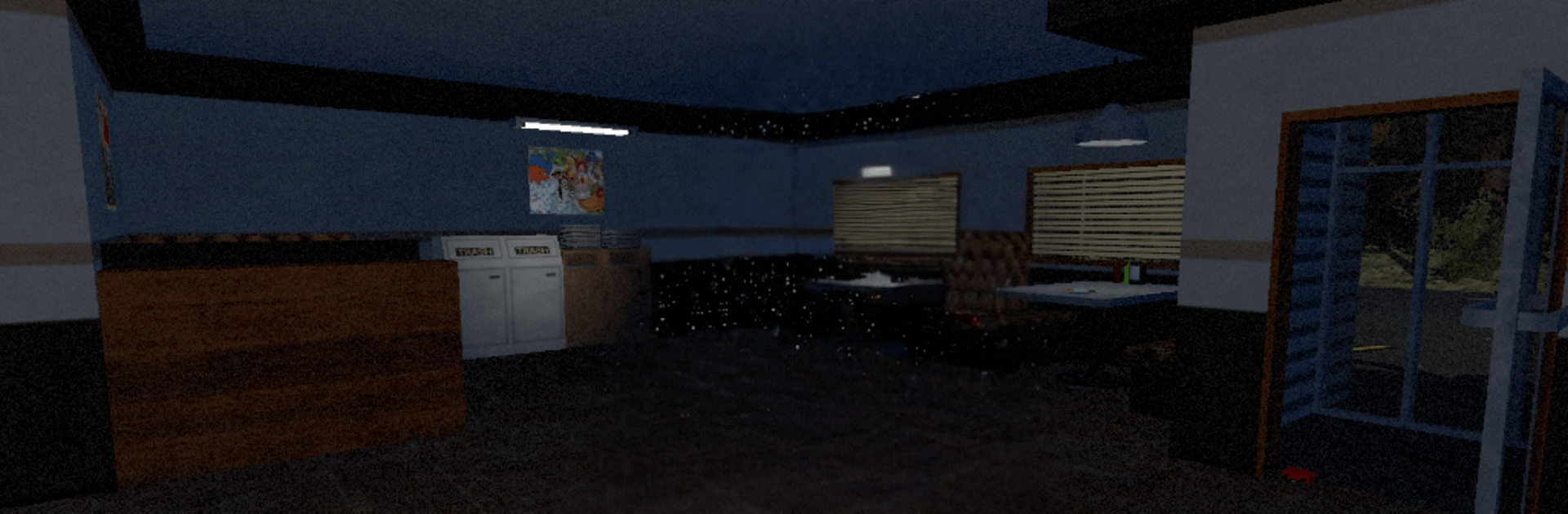
Ronald McDonalds is a single-player horror puzzle Adventure set inside a suspiciously perfect burger shop. You’re the rival who thinks the menu’s fame isn’t just about good seasoning—and you’re nosy enough to sneak behind the counter to prove it. Expect a thoughtful, investigative pace with exploration, decoding, and careful observation driving every step.

Game Features

  • A living shopfront: The cheerful counter hides secret spaces, locked doors, and odd mechanisms arranged like a maze; every corner begs a second look.
  • Puzzle-first design: From symbol ciphers to number locks and pattern boards, each challenge wants you to read the room, connect fragments, and keep smart notes.
  • Clues that layer: Receipts, scribbles, and offhand details stack across areas, turning background noise into key evidence when viewed together.
  • Tension without the noise: The unease comes from atmosphere, strange behaviors, and the store’s resistance to being understood—no reliance on cheap jump scares.
  • Tools are the props: Switches, appliances, and innocent-looking decor double as puzzle interfaces; figuring out how objects should function is part of the solve.
  • Earned progress: Every cracked code opens new rooms and deeper questions, pulling you closer to a “recipe” that might not be what you imagined.
  • Play your way: Built for solo sleuthing on mobile, and it also feels natural with keyboard and mouse on BlueStacks if that’s how you like to puzzle.

Start playing Ronald McDonalds on BlueStacks and get a smoother, more comfortable PC or Mac setup.
Game Features

Enhancements

  • Macros
  • Multi Instance
  • Multi Instance Sync
  • Script
  • Enhancements
Macros

Macros

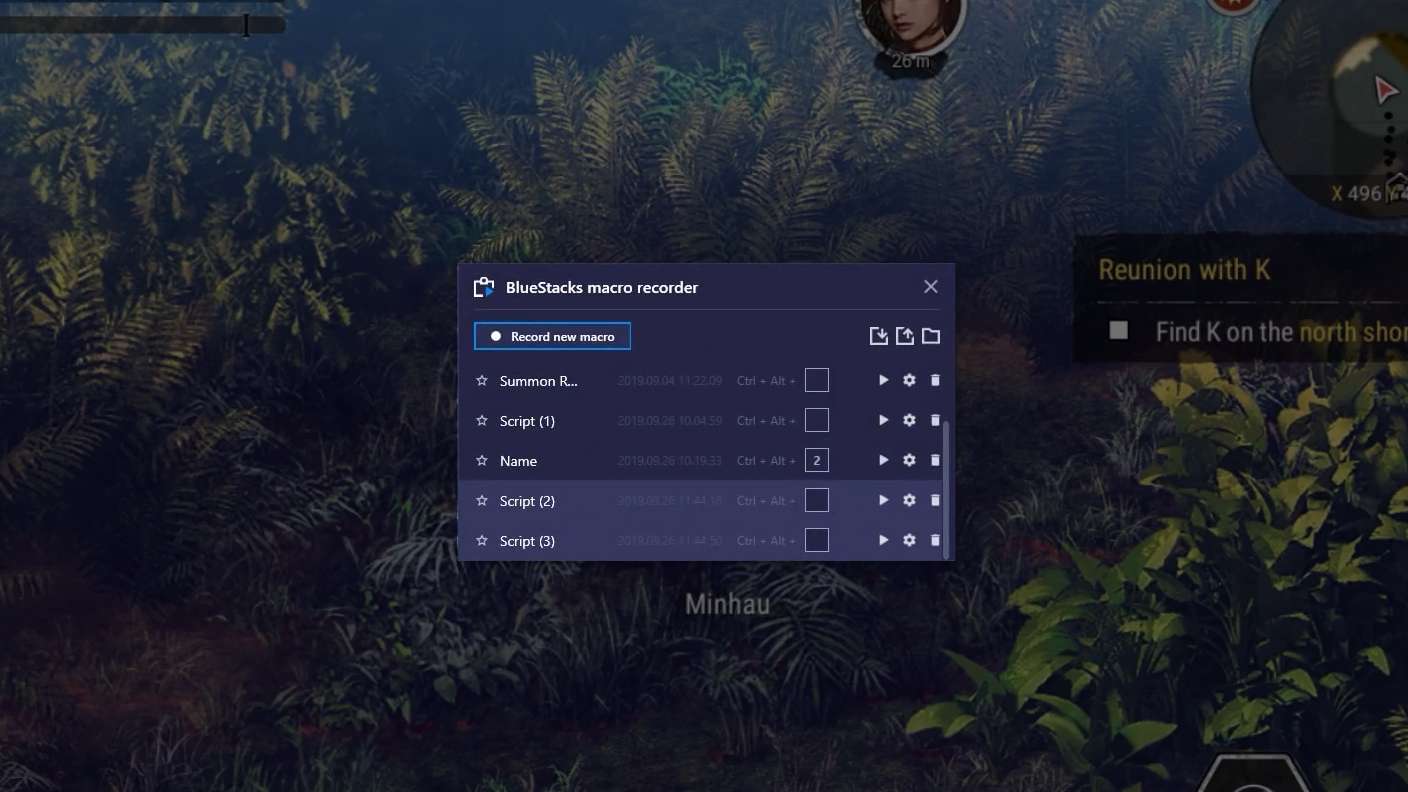
Automate the predictable in Ronald McDonalds and transform your gameplay with Macros. Get access to inventive Macros in the BlueStacks Macro Community
Multi Instance

Multi Instance

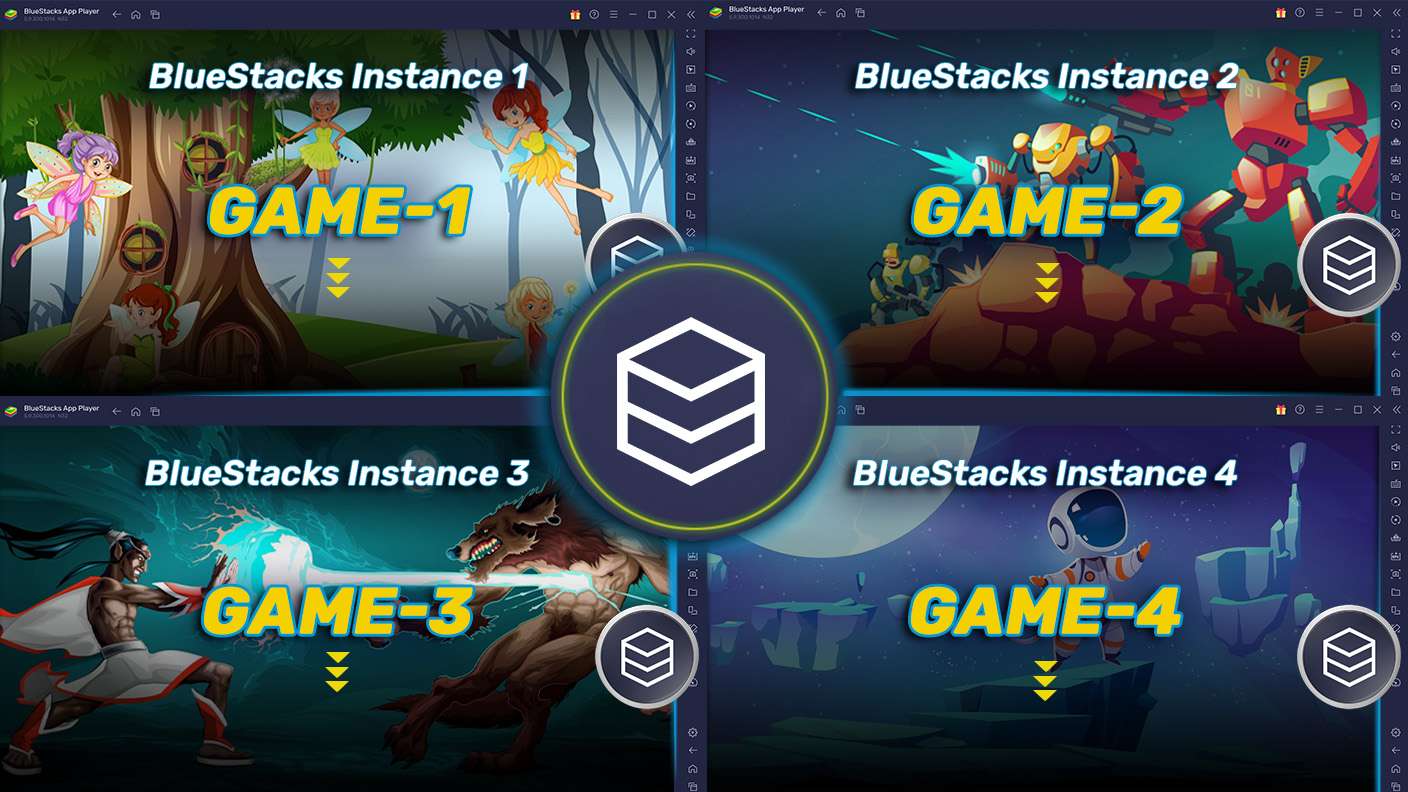
Play Ronald McDonalds on one window. And chat with your friend on the other. Press CTRL + Shift + 8 to open the Multi-Instance Manager. And start creating fresh instances or clone an existing one.
Multi Instance Sync

Multi Instance Sync

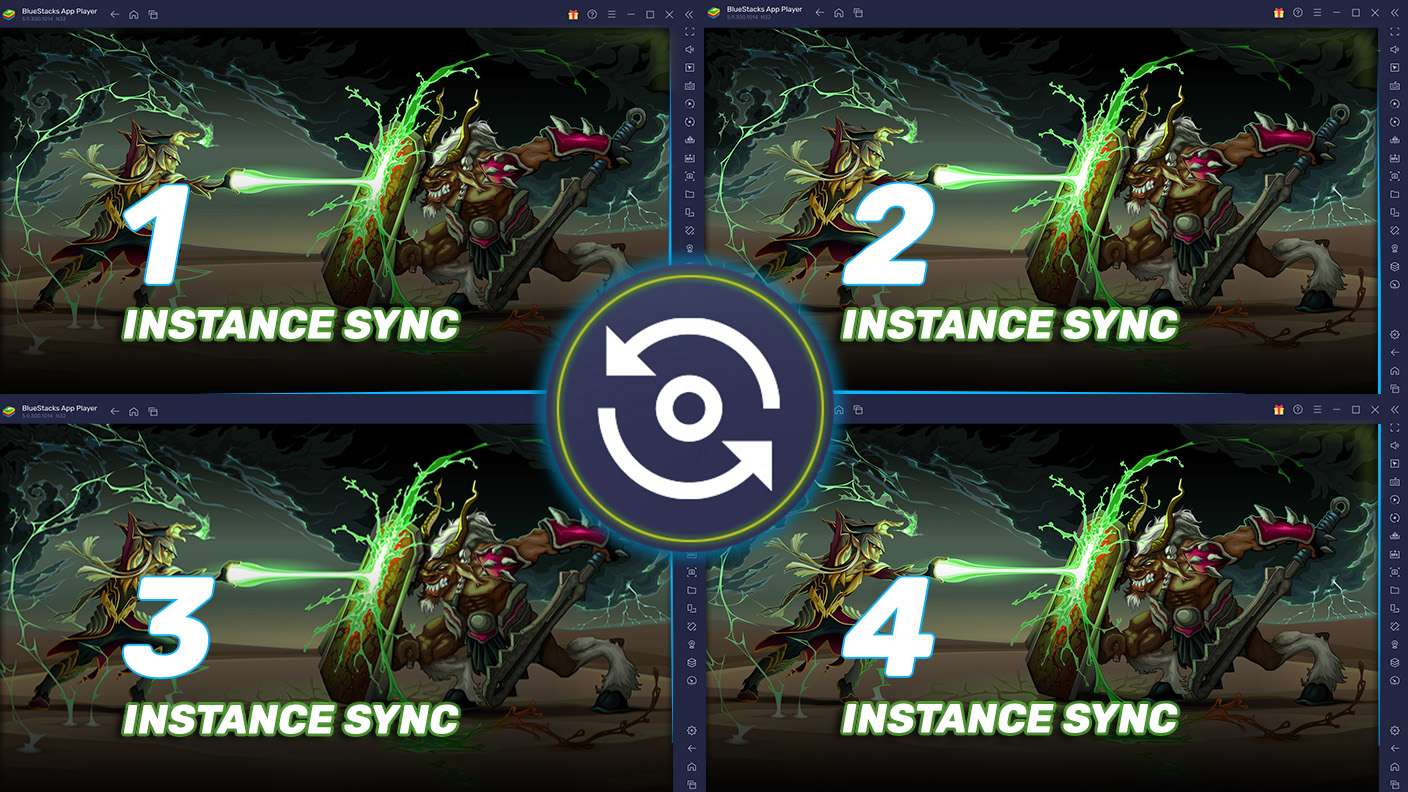
Play Ronald McDonalds with the power of Multi-Instance Sync. Replicate what you are doing on the main instance on all other instances. Level up faster, play more.
Script

Script

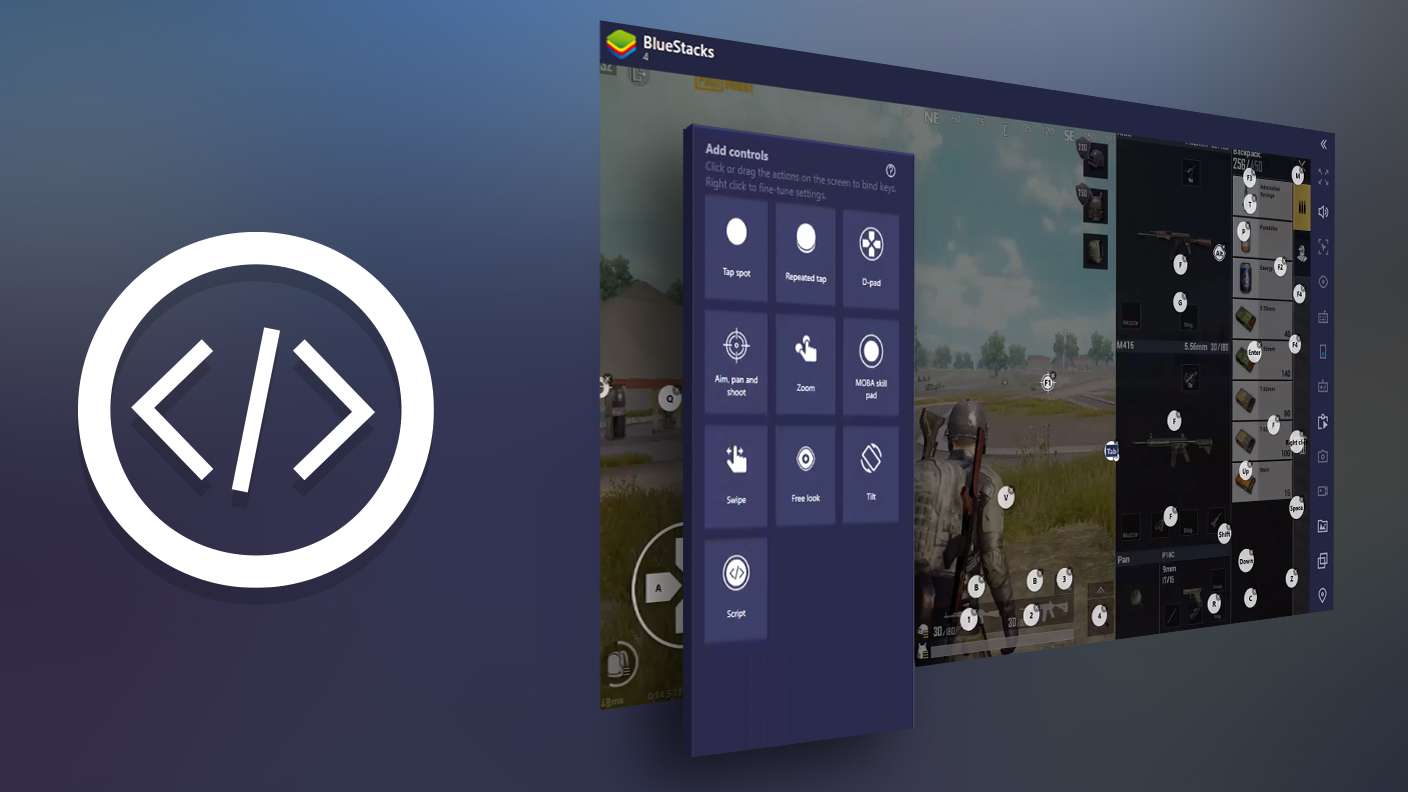
Script your way to gaming glory in Ronald McDonalds with BlueStacks Script. Write and run a set of commands to automate repeated tasks. Trigger the command by assigning it to any key.
Read More

How to Download and Play Ronald McDonalds on PC or Mac

  • Download and install BlueStacks on your PC or Mac

  • Complete Google sign-in to access the Play Store, or do it later

  • Look for Ronald McDonalds in the search bar at the top right corner

  • Click to install Ronald McDonalds from the search results

  • Complete Google sign-in (if you skipped step 2) to install Ronald McDonalds

  • Click the Ronald McDonalds icon on the home screen to start playing

video
Watch Video

Minimum System Requirements

With BlueStacks 5, you can get started on a PC that fulfills the following requirements.

  • Operating System

    Microsoft Windows 7 or above, macOS 11 (Big Sur) or above

  • Processor

    Intel, AMD or Apple Silicon Processor

  • RAM

    at least 4GB

  • HDD

    10GB Free Disk Space

Note:

* You must be an Administrator on your PC. Up to date graphics drivers from Microsoft or the chipset vendor.

Ronald McDonalds - FAQs

  • How to play Ronald McDonalds on Windows PC & Mac?

    Play Ronald McDonalds on your PC or Mac by following these simple steps.

    • Click on 'Play Ronald McDonalds on PC’ to download BlueStacks
    • Install it and log-in to Google Play Store
    • Launch and play the game.
  • Why is BlueStacks the fastest and safest platform to play games on PC?

    BlueStacks respects your privacy and is always safe and secure to use. It does not carry any malware, spyware, or any sort of additional software that could harm your PC.

    It is engineered to optimize speed and performance for a seamless gaming experience.

  • What are Ronald McDonalds PC requirements?

    Minimum requirement to run Ronald McDonalds on your PC

    • OS: Microsoft Windows 7 or above MacOS 11 (Big Sur) or above
    • Processor: Intel, AMD or Apple Silicon Processor
    • RAM: Your PC must have at least 4GB of RAM. (Note that having 4GB or more disk space is not a substitute for RAM)
    • HDD: 10GB Free Disk Space.
    • You must be an Administrator on your PC.