BlueStacks 16 Is Here: The First Android 16 Emulator for PC
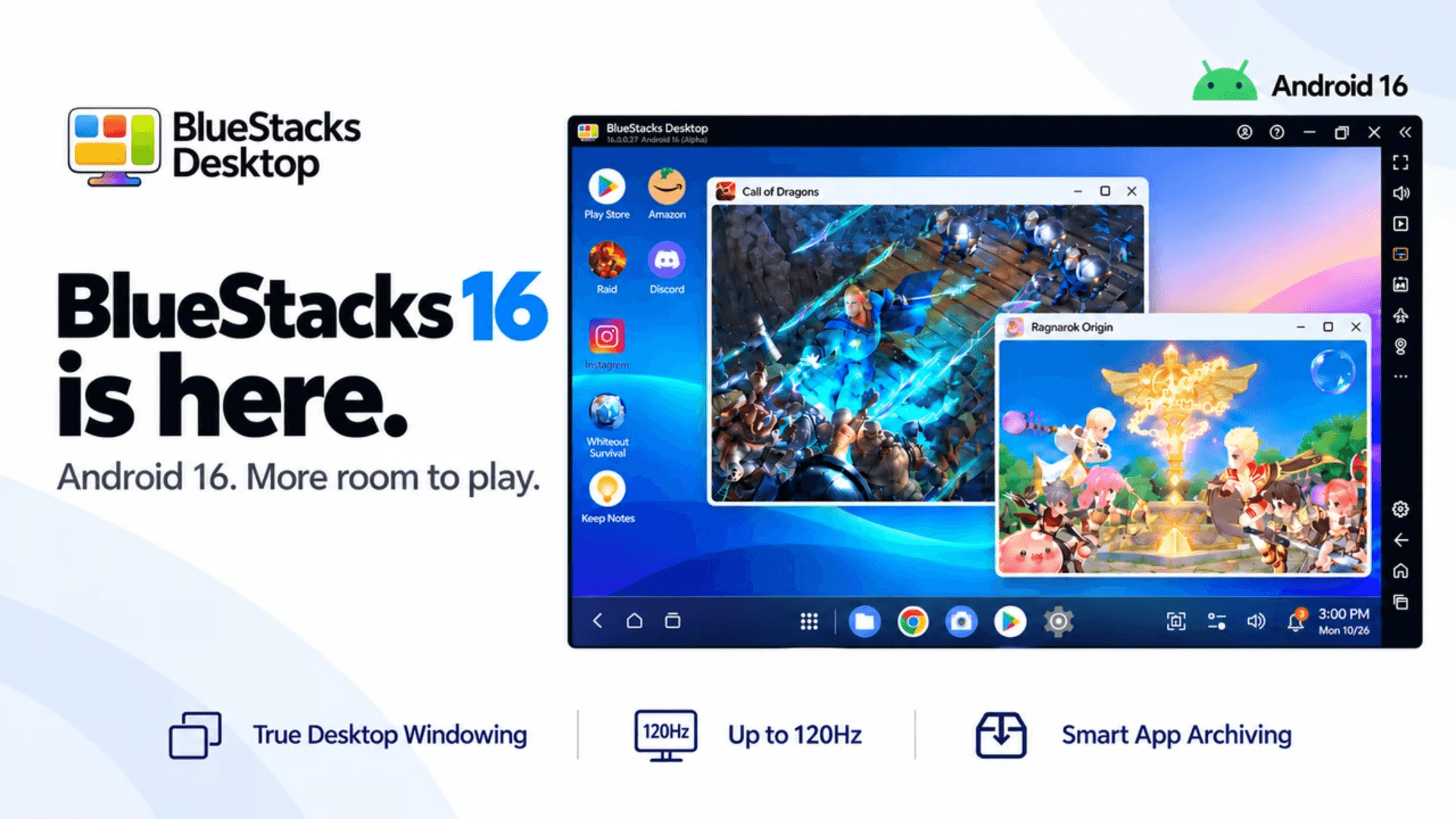
Every major shift in Android gaming on PC has a BlueStacks moment behind it. We pioneered running Android on the desktop, turned mobile gaming on a bigger screen into an everyday habit for millions, and have brought each new Android generation to PC ahead of the pack. BlueStacks 16 is the next chapter, bringing a new Android 16 emulator experience to PC through BlueStacks Desktop.
As games move to newer Android versions, the OS behind your emulator matters. Google Play now requires new apps and updates to target Android 16 (API level 36), and BlueStacks 16 brings that full environment to your PC from day one, making it the first Android 16 emulator for PC.
But staying current is only part of the story. BlueStacks 16 rethinks how your games and apps fit on your desktop, with more room to play and more control over your space.
True Desktop Windowing: Multi-Instance, Reimagined
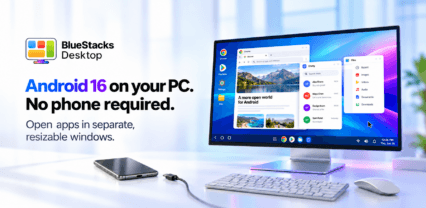
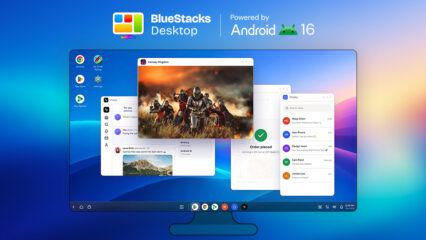
BlueStacks pioneered Multi-Instance, letting players run several games at once by launching separate copies of the emulator. True Desktop Windowing is the next step in that evolution. Instead of spinning up a new instance for every game or app, BlueStacks 16 opens each one in its own window inside a single instance. One Android environment does the work of many, so your PC uses less RAM, fewer background processes compete for resources, and your games stay responsive.
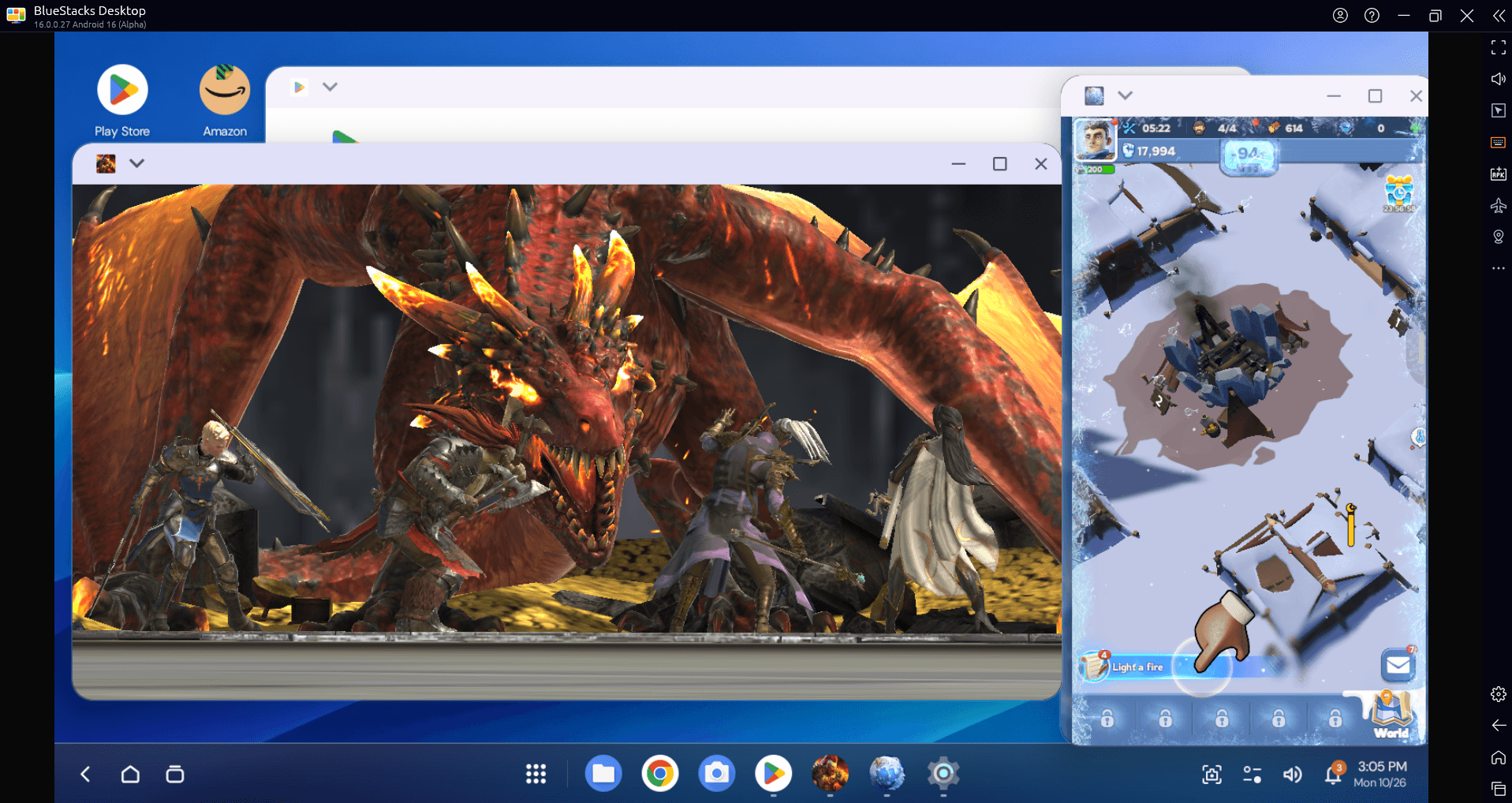
The result is a workspace that feels like your desktop. Open supported games and apps in separate windows, then move and resize them to fit your screen. Keep an RPG front and center with a build guide beside it, leave an idle game in view between matches, or tuck a portrait game into a narrow window and use the rest of your monitor for chat. Everything stays in view, without switching screens or straining your system.
Next-Gen Compatibility: Play new games the day they launch
BlueStacks 16 brings Android 16 to your PC, so you can play supported new releases without waiting to upgrade to a compatible device. For players looking for an Android 16 emulator for Windows 11, it provides a current Android foundation while keeping the controls, screen space and hardware advantages of PC gaming.
Give your game library a modern foundation and room to grow. From the new release on your radar to the favorite you return to every day, bring your Android gaming to a screen built for bigger experiences.
Android 16 provides the foundation for the games and apps you run, while BlueStacks turns that foundation into a PC gaming experience with desktop-style windows and familiar controls.
Big-Screen Gaming With Controls Made for PC
See more of the map in strategy games, catch enemies sooner in shooters, and take in every detail of an RPG world on your full-size monitor. Menus are easier to read, and crowded battles are easier to follow.
Then play the way PC gamers expect. Aim with your mouse, move with your keyboard, or plug in a supported gamepad. No more cramped thumbs or accidental taps, just precise, comfortable control for long sessions. Pair it with your preferred window layout and your setup is ready for every kind of game.
Smoother Gameplay With High FPS and Up to 120Hz
In fast-paced games, every frame counts. BlueStacks 16 supports up to 120Hz, unlocking high FPS in supported games, so quick camera turns, fast-moving enemies and busy team fights look smoother and are easier to track. On a high-refresh monitor, this is where it pays off: more frames on screen, sharper reactions and less blur when the action heats up.
Smart App Archiving: Free Up Space Without Losing Your Progress
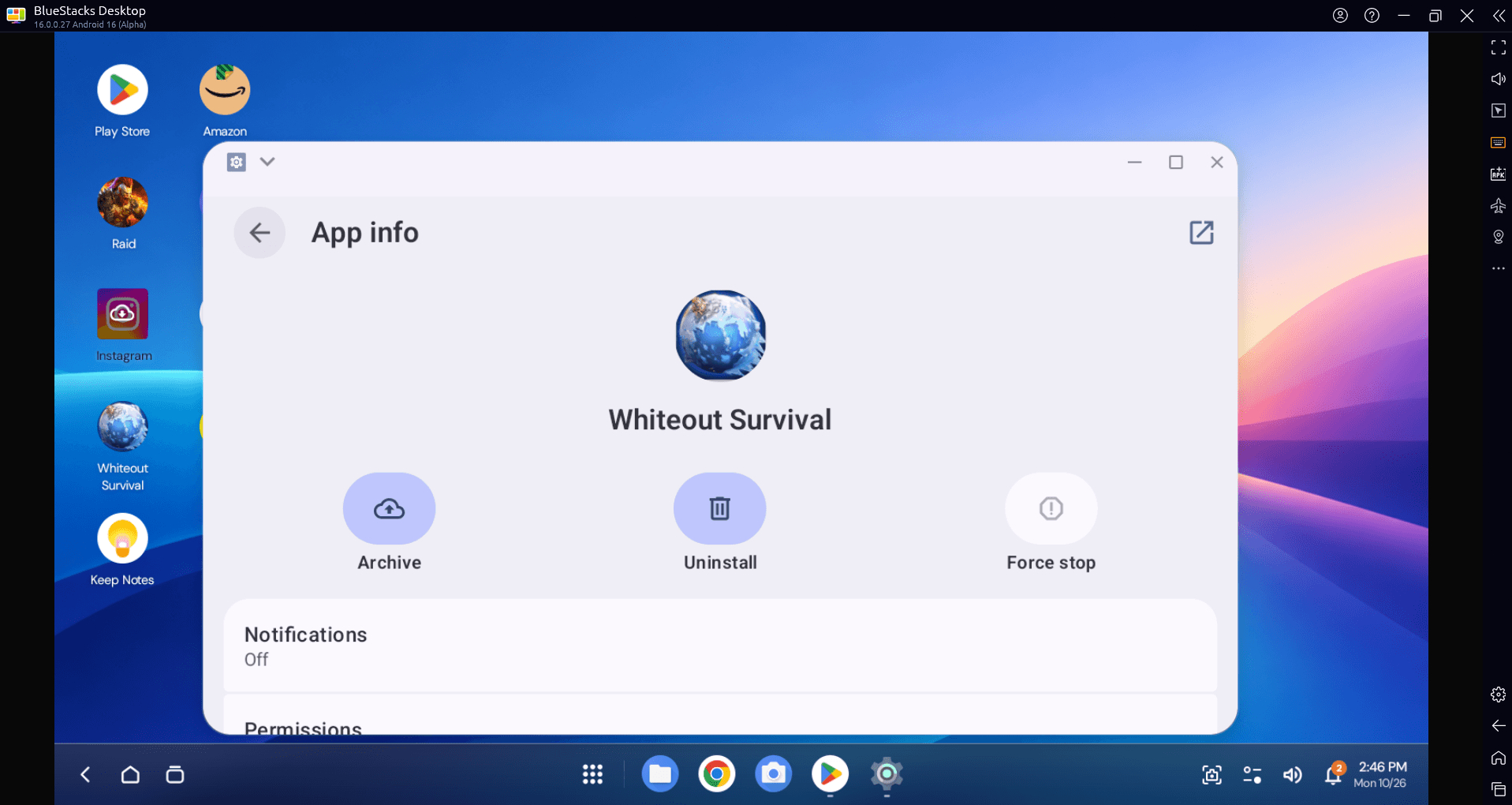
Games keep getting bigger, and storage runs out fast. Smart App Archiving lets you archive a supported game you’re taking a break from, removing its game files while keeping its app data. Free up space for the next big release, then restore the archived game whenever you want to jump back in. No full reinstall, no starting from scratch.
Get started with BlueStacks 16
If you’re looking for an Android 16 emulator download, visit BlueStacks, click Download BlueStacks 16 and install it on your PC. Open your game, arrange supported apps around it and make the most of your monitor.