How to Connect BlueStacks Desktop to Claude or Codex
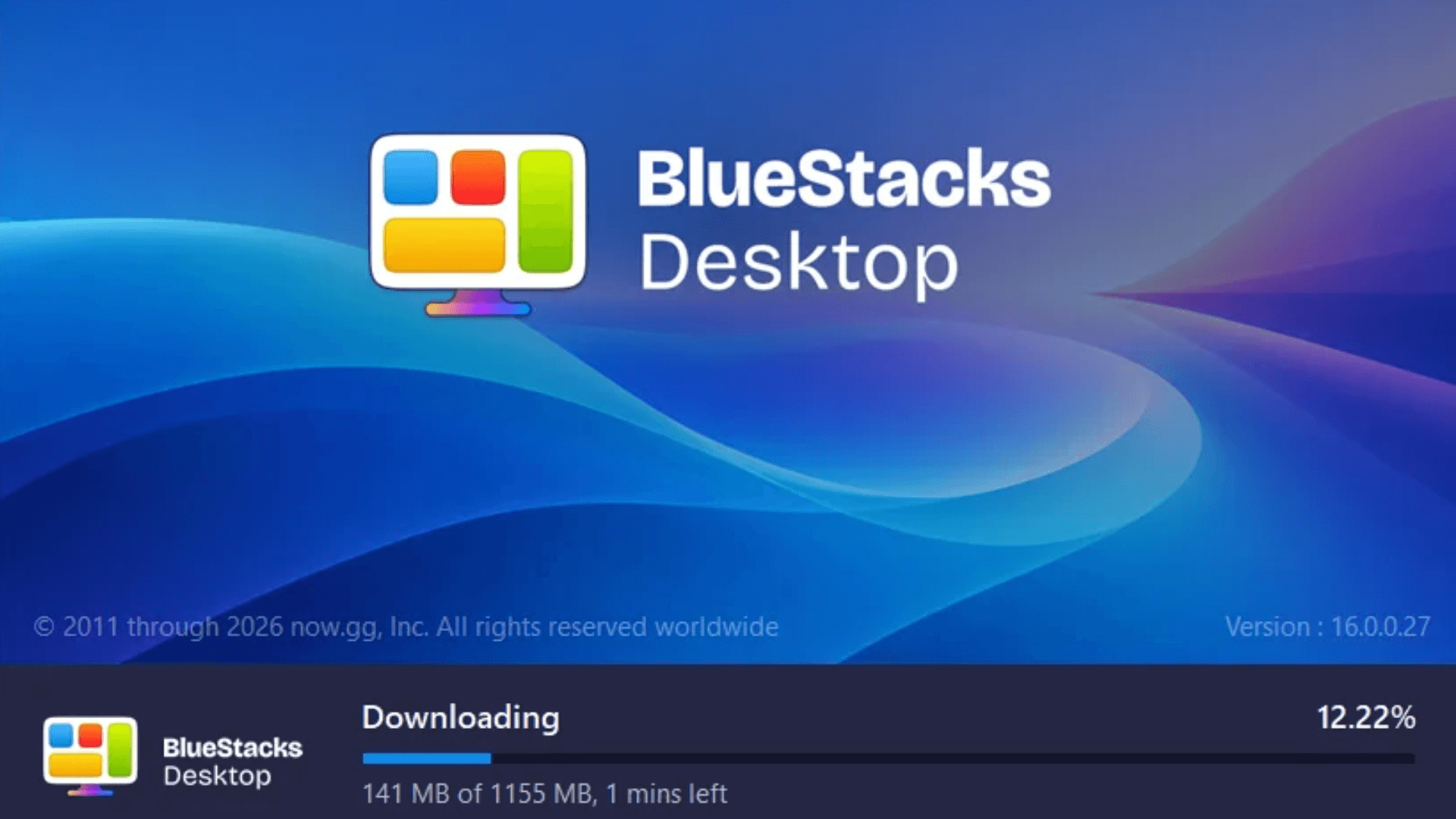
BlueStacks Desktop gives your AI agent its own Android 16 environment on your PC, where it can open apps, tap, type and get tasks done just like you would. This guide walks you through connecting it to Claude or Codex in four quick steps. Complete the shared setup first, then follow the instructions for your agent.
Before you start, you’ll need
- A Windows PC with at least 12 GB of RAM
- Claude or Codex installed on the same PC, not inside BlueStacks
- Access to your chosen agent:
- Claude: Pro, Max, Team or Enterprise, with Cowork available
- Codex: A ChatGPT Plus account with Codex access
Step 1: Download BlueStacks Desktop and the AI agent skill
On the BlueStacks Desktop page, click Download BlueStacks Desktop and run the installer. Then click Download AI agent skill just below it, and save the file somewhere easy to find, like your Downloads folder.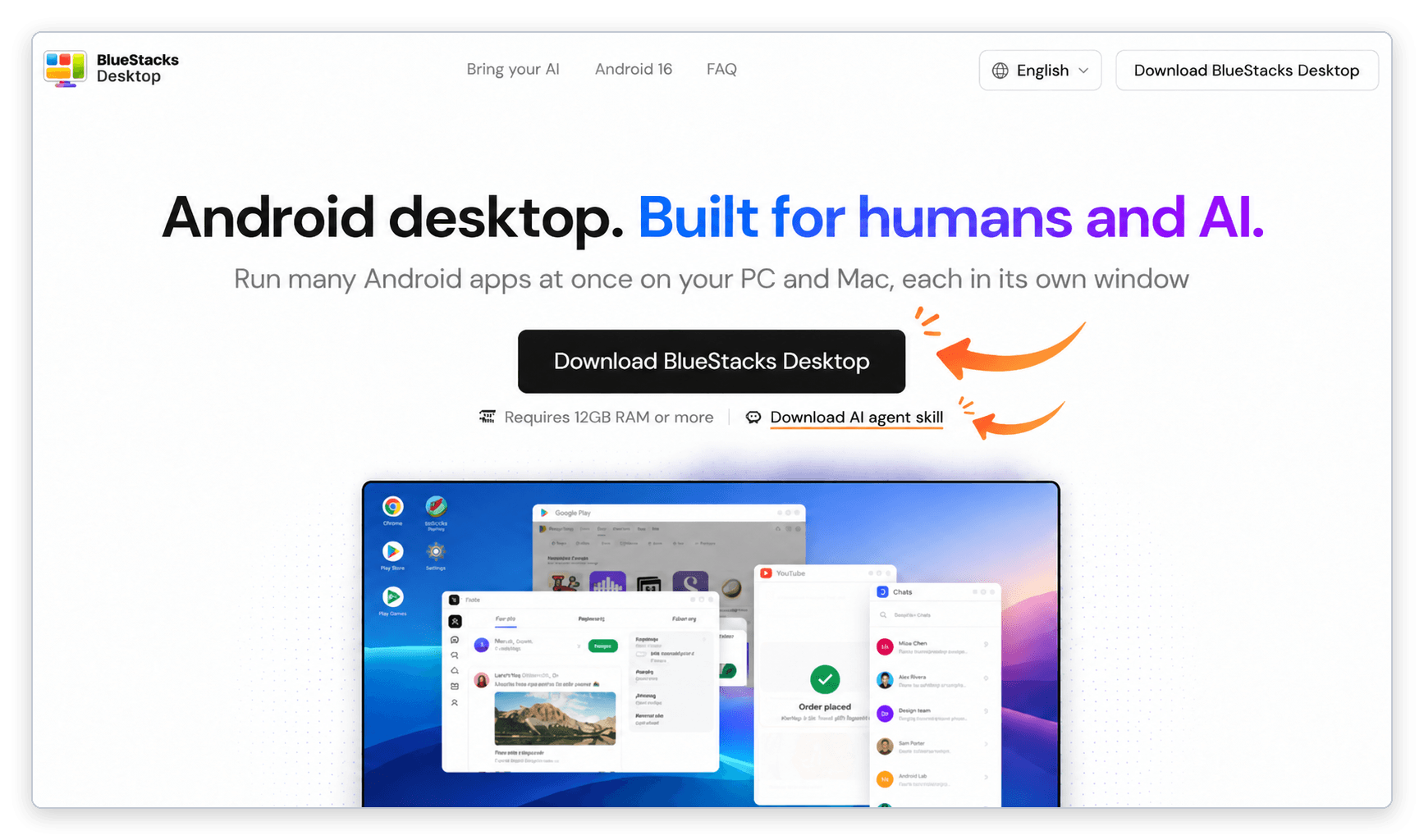
Step 2: Turn on ADB
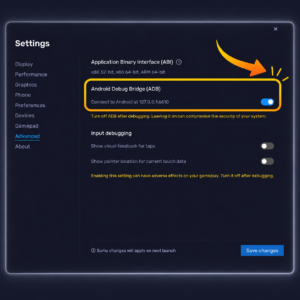
Open BlueStacks Desktop, then go to Settings → Advanced.
Turn on Connect to Android at 127.0.0.1, then click Save changes. This enables the Android Debug Bridge (ADB) connection your agent uses to interact with apps inside BlueStacks.
Keep BlueStacks Desktop open while you use it with Claude or Codex.
Step 3: Add the skill to your agent
Follow the instructions for the agent you use.
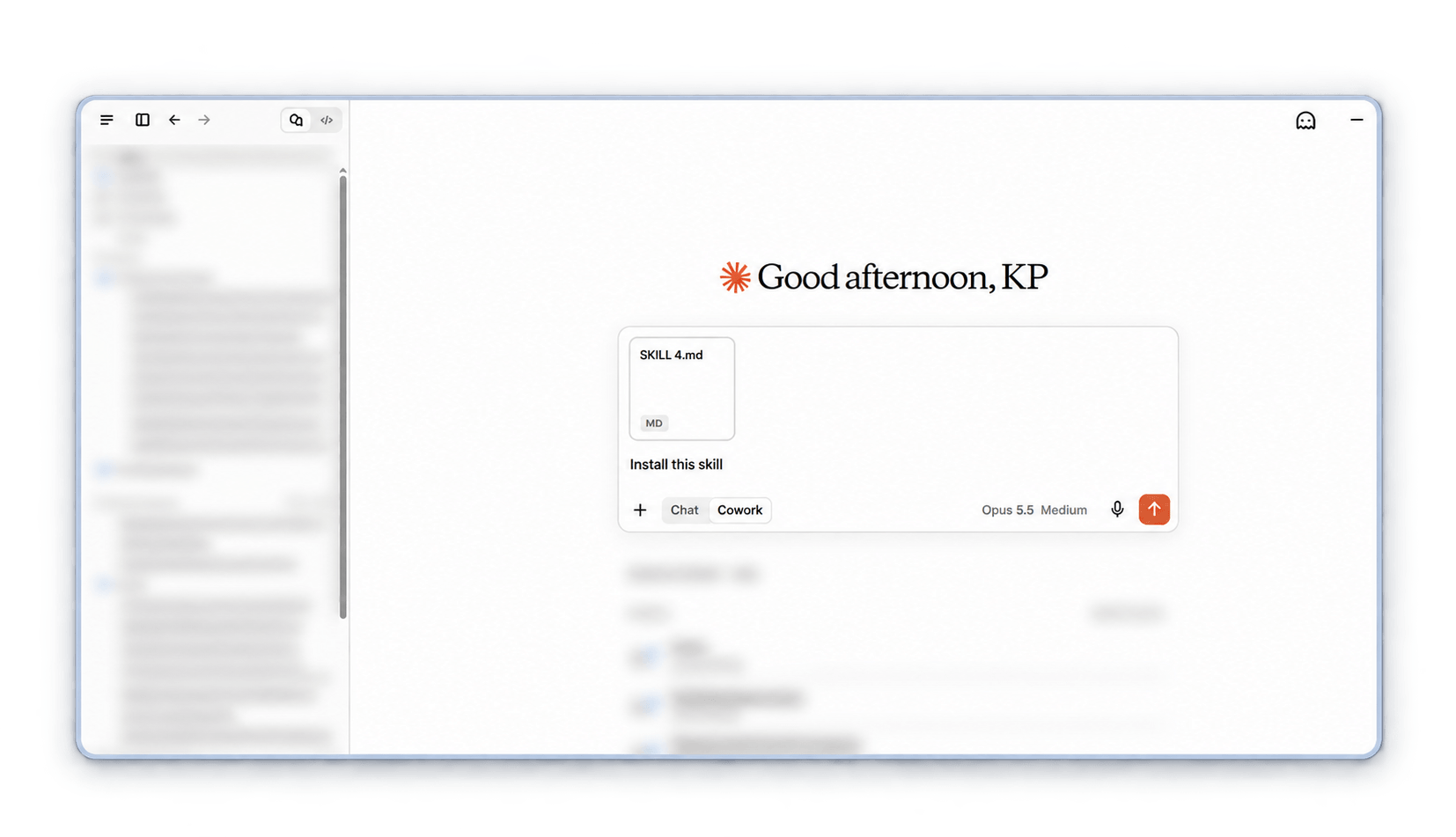
Open the Claude desktop app and start a new Cowork chat with access to your PC. Attach the skill file you downloaded and send: Install this skill. Using ChatGPT instead? The steps are the same: attach the file and ask it to install the skill.
Step 4: Ask your agent to use BlueStacks
You’re ready to try a task. Send one of these prompts to Claude or Codex or try your own.
- Open the Play Store in BlueStacks Desktop and install Spotify.
- Take a screenshot of my BlueStacks Desktop screen.
- Open Chrome in BlueStacks Desktop and search for today’s weather
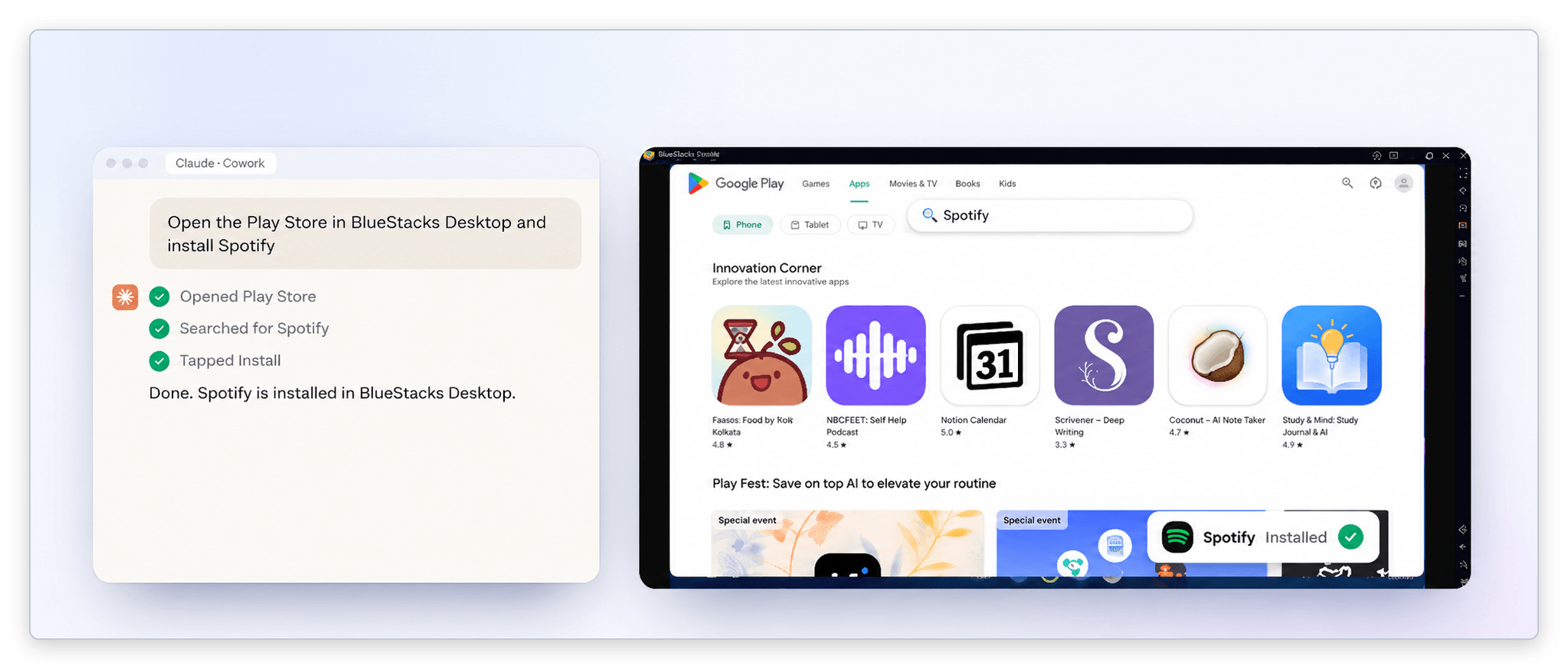
If your agent asks you to sign in to an app or approve access, complete that step and let it continue.