Windows Subsystem for Android Alternative: How to Run Android Apps on Windows 11
If you used Android apps on Windows 11 through Windows Subsystem for Android (WSA), you may have noticed it’s no longer supported. Microsoft ended support for WSA and the Amazon Appstore on Windows on March 5, 2025.
If you still want Android apps on your PC, BlueStacks Desktop is a simple way to get them back, with Google Play built in and the newest version of Android.
What happened to WSA
WSA arrived with Windows 11 in 2021 and let Android apps run alongside regular Windows programs. Apps came from the Amazon Appstore rather than Google Play, so the selection was narrower than what most people have on their phones.
Microsoft announced WSA’s retirement in March 2024 and ended support on March 5, 2025. Apps installed before then may still open, but WSA no longer gets updates or fixes, and Amazon has said some apps may stop working over time. New apps can’t be installed.
Your options now
There are two main ways to use Android apps on a Windows PC today.
- Mirror your phone. Microsoft’s Phone Link shows apps from a supported Android phone on your PC. The apps keep running on the phone, so it needs to stay on, nearby and on the same Wi-Fi network. It works well for quick tasks like replying to a message.
- Run Android on the PC. An Android environment such as BlueStacks Desktop runs apps directly on your computer, with no phone needed. This is the closest replacement for what WSA did, and it adds Google Play.
Why BlueStacks Desktop
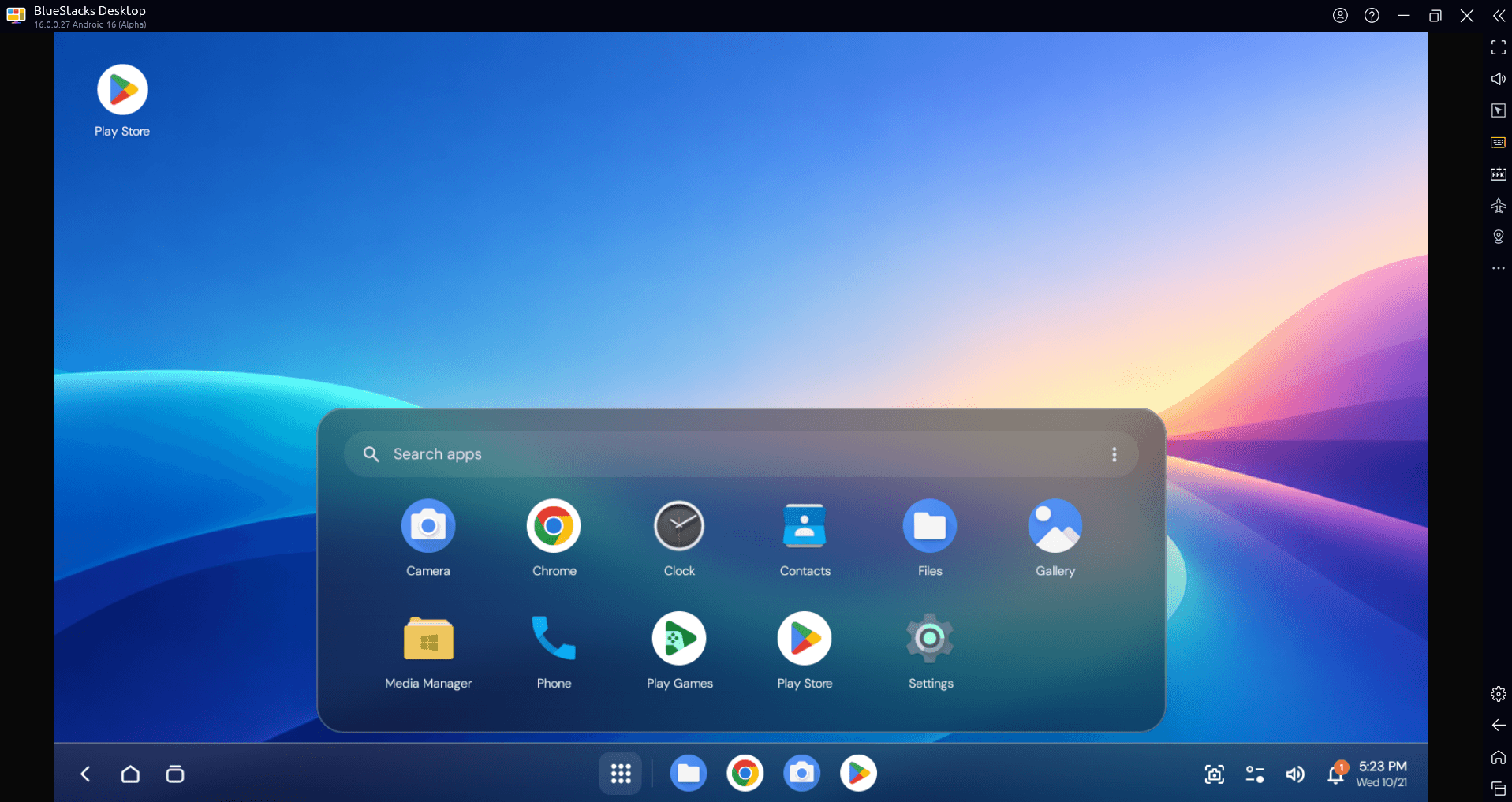
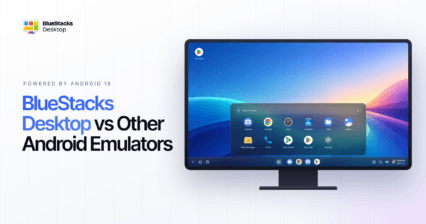
- Google Play built in. You install apps the same way you would on your phone, from the full Google Play catalogue. Chrome is built in too.
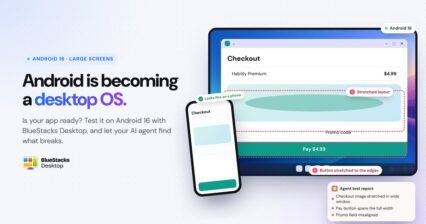
- Android 16. BlueStacks Desktop runs Android 16, the newest Android on any major PC emulator. Since August 31, 2026, Google Play has required new apps and updates to target Android 16, so this is the version apps are now built and tested for.
- A full Android desktop. You get a home screen, an app drawer and a taskbar with notifications. Apps open in their own resizable windows, so you can keep several side by side and use them with your keyboard and mouse.
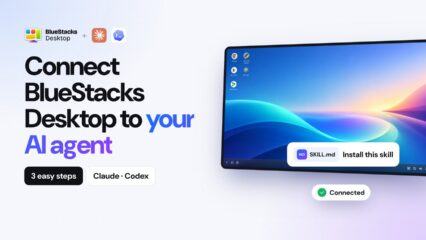
- Ready for AI agents. BlueStacks Desktop also gives AI agents an Android environment where they can work with apps, in a space separate from your personal phone.
WSA vs BlueStacks Desktop
| Windows Subsystem for Android | BlueStacks Desktop | |
| Status | Support ended March 2025 | Available now |
| App store | Amazon Appstore | Google Play |
| Android version | No longer updated | Android 16 |
| Interface | Individual app windows | Full Android desktop |
How to get started
Follow the steps below, or read this guide: How to connect your AI Agent to BlueStacks Desktop
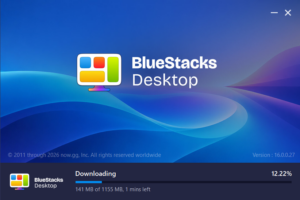
- Download BlueStacks Desktop from bluestacksdesktop.com and run the installer. Also download the Agent Skill file and keep it handy.
- Open your AI agent (claude, codex etc.) and install the skill file.
- Start using BlueStacks desktop!
Before you install
- Windows only for now; Mac support is coming soon.
- Needs at least 12 GB of RAM.
- Installs alongside BlueStacks 5, so there’s nothing to uninstall.
WSA may be gone, but your Android apps don’t have to be: download BlueStacks Desktop and get them back on Windows 11 with Google Play and Android 16.